Gamvion theme
user guide.
Everything you need to install the theme, import the demo, and change every part of your game-studio site: pages, games, team, blog, forms, colours and fonts.
01Welcome
Thank you for choosing Gamvion. It is a dark, neon-lime WordPress theme for game studios, indie publishers and creative teams. Pages are built with the free Elementor plugin, so you can change text, images and layout with drag and drop. Games, team members and blog posts are normal WordPress content that you add from the admin menu.
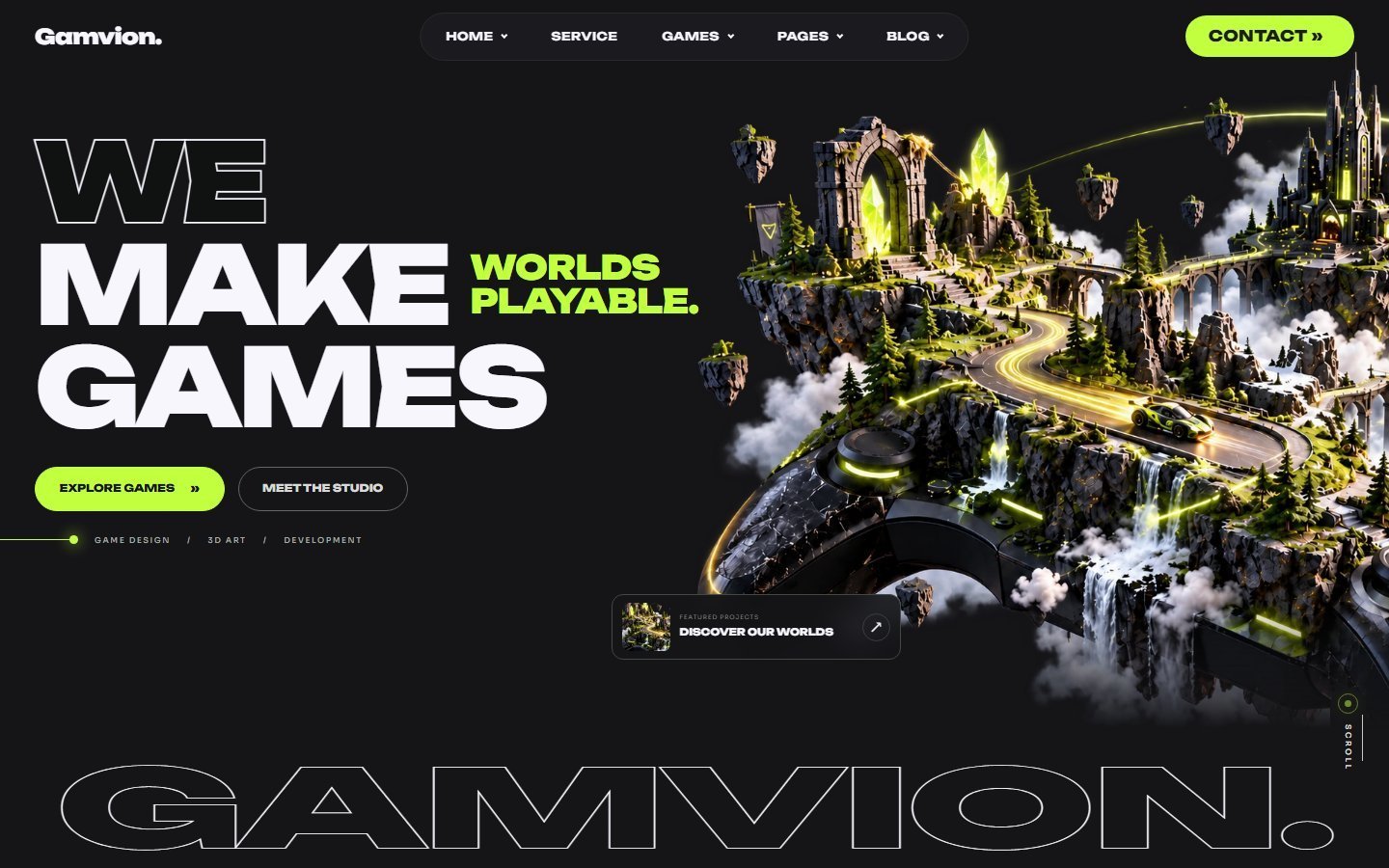
Edit pages visually with Elementor. Add games, people and posts from simple forms.
Import the whole demo site, including images, pages, games, team and blog posts.
Every page has a hamburger menu and layouts tested from 320px to wide desktop screens.
A contact form with a Messages inbox, plus a newsletter signup, ready to use.
02Requirements
| Item | Minimum | Recommended |
|---|---|---|
| WordPress | 6.8 | Latest version |
| PHP | 7.4 | 8.1 or newer |
| MySQL / MariaDB | 5.7 / 10.3 | 8.0 / 10.6 |
| PHP memory limit | 256 MB | 512 MB |
| Max upload size | 128 MB for the Core archive | 256 MB (or install the plugin through the provided TGMPA download) |
| Required plugins for the demo | Elementor (free, from WordPress.org) and Gamvion Core 1.0.1 (included separately). Install and activate both yourself through Appearance › Install Plugins. Elementor Pro is not required. | |
The demo importer creates content with fixed IDs so every design rule matches. Install it on a new site, or on a site that has no pages of its own yet.
03What is in the package
04Install the theme
- Install Elementor firstIn WordPress go to Plugins › Add New, search for Elementor, press Install Now, then Activate. If Elementor asks you to sign in or take a tour, you can skip it.
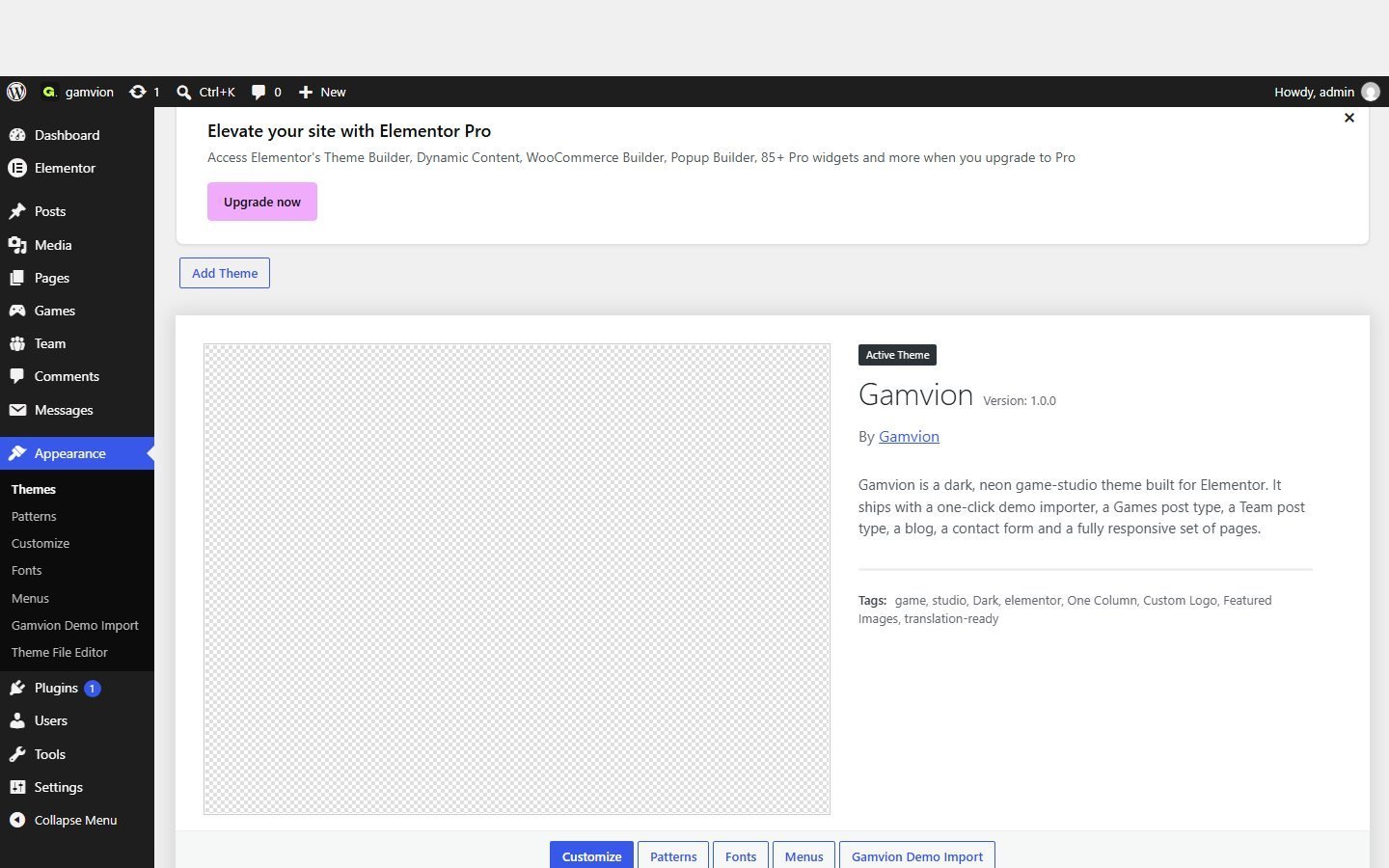
- Upload the themeGo to Appearance › Themes › Add New › Upload Theme. Choose
gamvion-theme.zipand press Install Now. - Activate itPress Activate. Open Appearance › Install Plugins, choose Elementor and Gamvion Core, install them, then explicitly activate them. If the Core download is unavailable, upload the included
gamvion-core.zipthrough Plugins › Add New › Upload Plugin and activate it. The plugin adds Games, Team, Messages and Appearance › Gamvion Demo Import. The theme never activates plugins automatically.
Your host limits uploads. Either raise upload_max_filesize and post_max_size to 256M, or upload the unzipped gamvion folder with FTP into wp-content/themes/.
Gamvion Core and safe updates
The theme owns layout and styling. Gamvion Core owns game and team records, their content fields, the contact form, stored messages, newsletter subscriptions, sharing controls and demo import. Keep the plugin active when switching themes to retain access to this content. Deactivating or deleting the plugin does not delete its saved records.
Upload Gamvion Core first and leave it inactive. Replace the theme with version 1.0.1, then explicitly activate Gamvion Core through Plugins. If Core was activated early, it waits safely while the old theme is active and shows an admin notice. Back up files and the database first and test on a staging site. Existing content IDs and metadata keys are unchanged. Existing imported demo widgets are supported without reimporting.
Do not run demo import on an existing site. It is an explicit opt-in operation for a fresh WordPress installation. It sets the homepage, permalinks and other demo settings and refuses conflicting content IDs. It does not remove existing drafts.
The contact form is also available as [gamvion_contact_form]. Messages are saved under Messages and sent using WordPress mail to the administrator address. Configure your host or an SMTP plugin if delivery fails. Contact and newsletter requests require a valid WordPress nonce; contact requests also require consent. Cached contact pages must be refreshed before their nonce expires.
05Import the demo
The importer rebuilds the live demo on your site: all 17 pages, 14 games, 6 team members, 7 blog posts, Elementor global classes, the homepage setting, permalinks, site icon (the striped lime triangle) and about 160 images.
- Open the importerGo to Appearance › Gamvion Demo Import. All status rows should say Active or Found.
- Press "Import demo"A progress bar appears and a log lists each step: checks, media copy, images, pages and content, settings, finish. It takes one to three minutes. Keep the tab open.
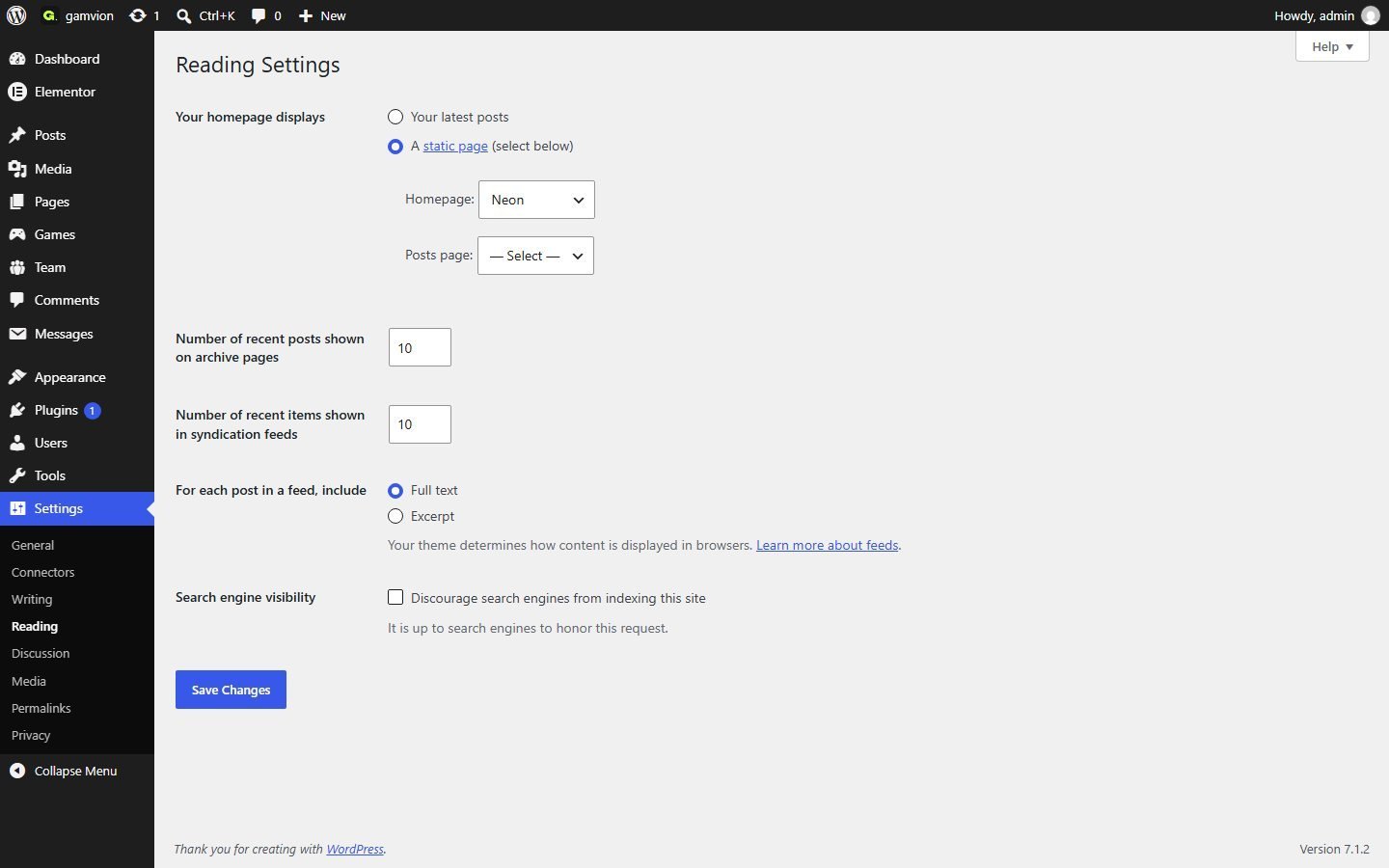
- Visit your siteWhen the log says Done!, open your homepage. It now shows the Neon home page.
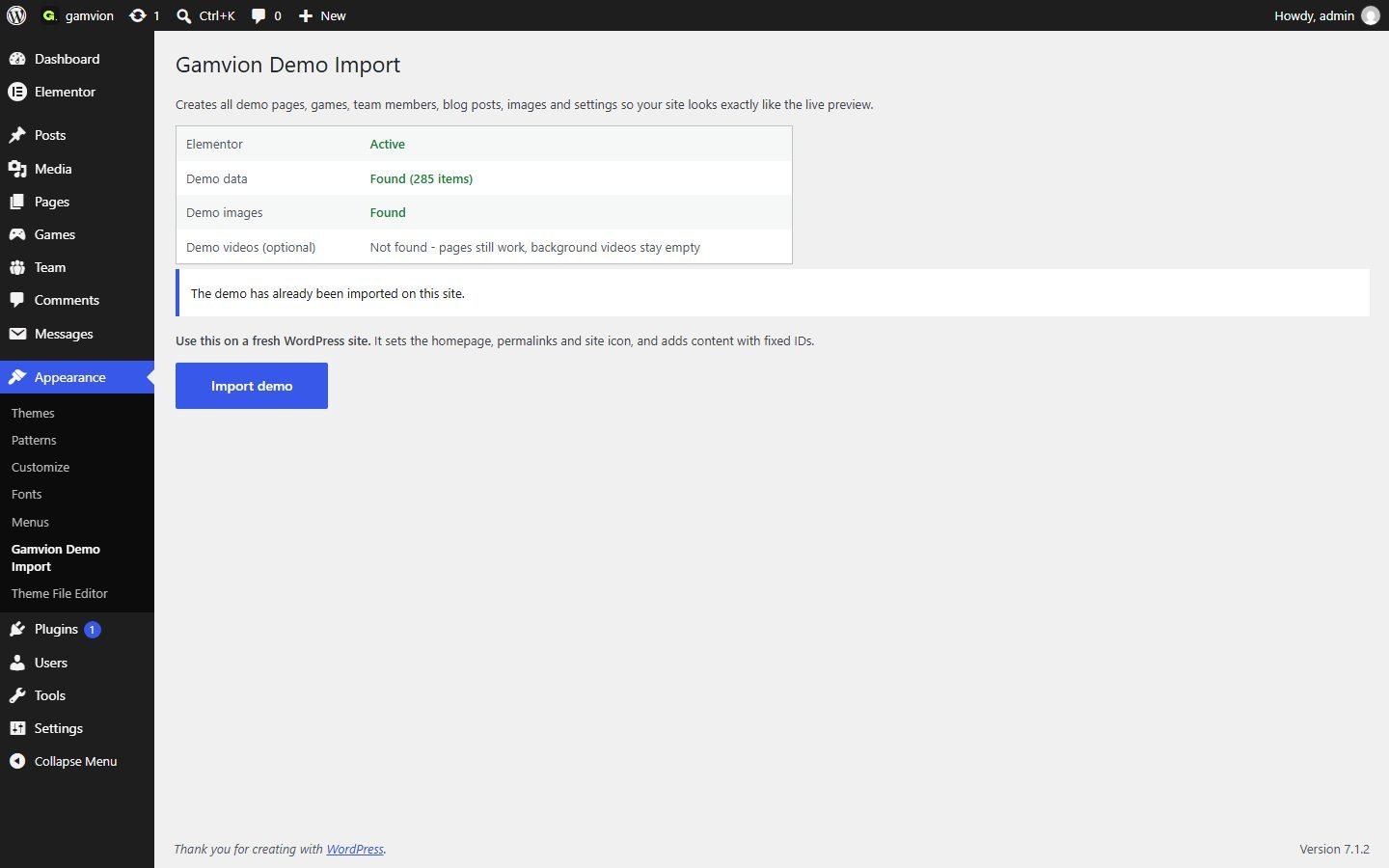
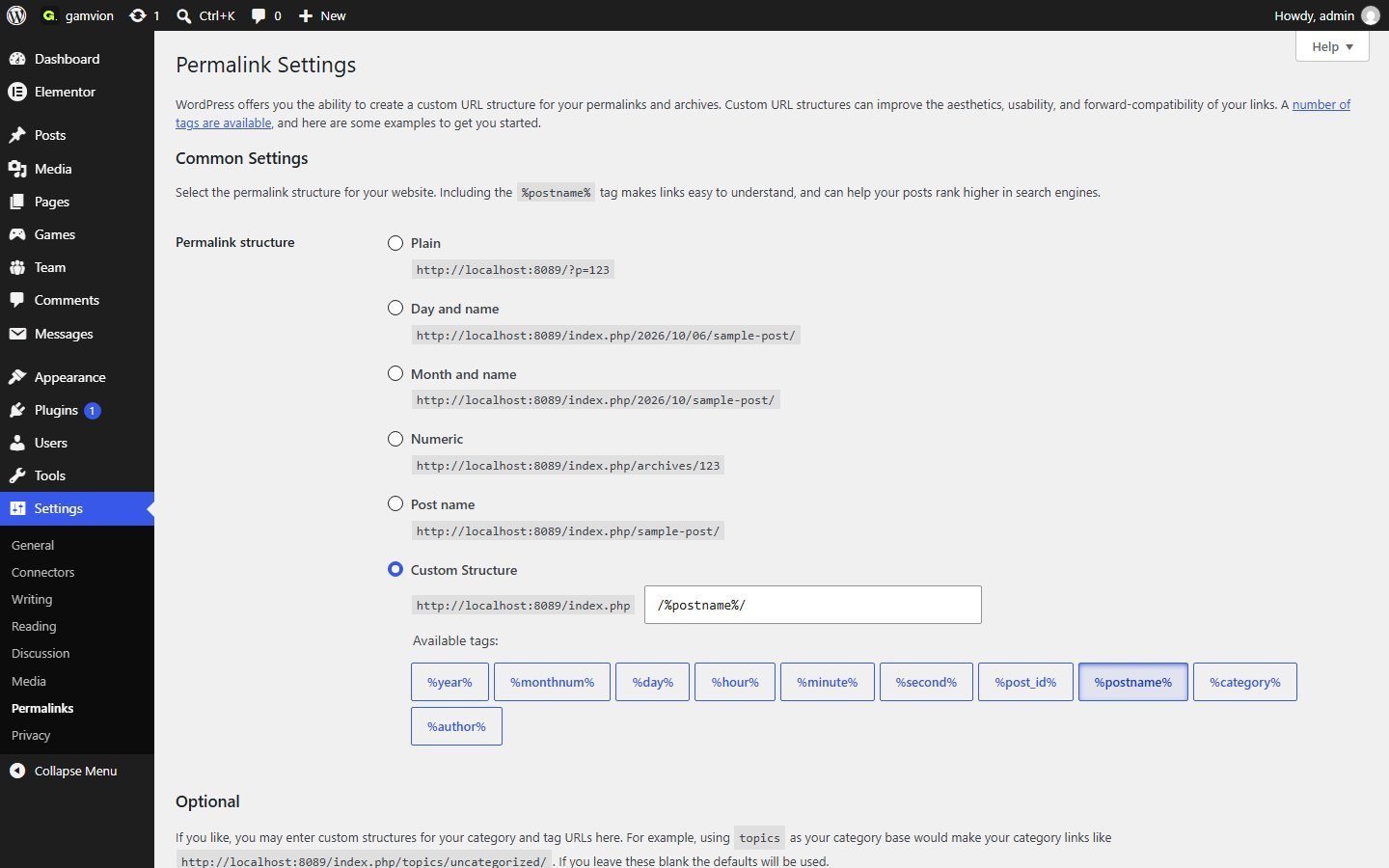
Homepage = Neon (static front page), permalinks = /%postname%/, site icon, comments closed by default, and a refreshed Elementor cache.
If your site already has content that uses the same post IDs, the importer shows an error instead of overwriting anything. Use a fresh WordPress install, then import.
06Demo videos (optional)
Video files are optional and are not included in this corrective update package. If you already have the separately supplied demo-video archive, follow the instructions below. Without it, page layouts remain available but video backgrounds and trailers require your own media.
- Unzip
gamvion-demo-videos.zip. It contains a folder calledmediawith the same year/month folders that the images use. - Copy before importingCopy the contents of that
mediafolder intowp-content/plugins/gamvion-core/demo/media/(merge with the existing folders), then run the importer. The importer copies them into your Uploads folder. - Already imported?Copy the same folders directly into
wp-content/uploads/instead. Keep the same sub-folder names.
07First steps after import
Work through this short checklist:
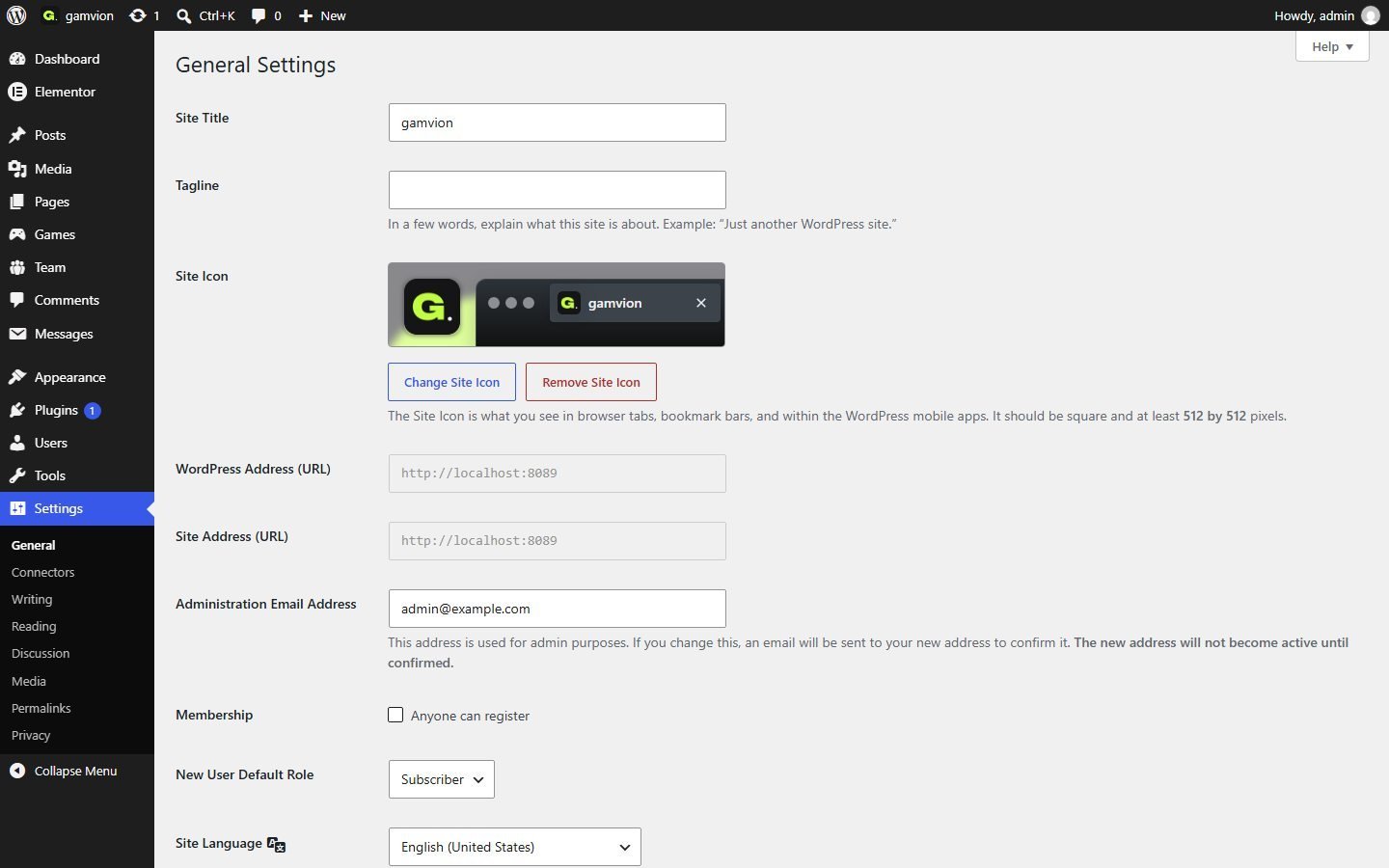
- Open Settings › General and change the Site Title, tagline and Administration Email (contact messages are sent here).
- Open Settings › Permalinks and press Save Changes once. This refreshes the game, team and blog detail addresses.
- Edit the text of the homepage in Elementor (see Editing with Elementor).
- Replace the demo games, team members and blog posts with your own.
- Change the logo text, menu links and footer (see below).
- Replace the demo images with images you own or are licensed to use.
08Site name, icon and logo
Site title and tagline
Settings › General → change Site Title and Tagline. The browser tab and search engines use them.
Site icon (favicon)
Go to Appearance › Customize › Site Identity › Site Icon, press Select site icon and choose a square image of at least 512 × 512 px. The demo already uses one.
Logo
The "Gamvion." logo in the header and footer is a text heading inside Elementor, so you can restyle it freely.
- Open any page with Edit with Elementor.
- Click the logo in the header. In the left panel change the text (for example to YourStudio.) or replace the heading with an Image widget and upload your logo.
- Repeat on each page, because the header belongs to each page (see Header and menu). Copy the header and paste it across pages to save time: right-click the header container › Copy, then on another page right-click › Paste.
09Pages overview
The demo contains 17 pages. Each one is an Elementor page you can edit.
| Page | Address | What it shows |
|---|---|---|
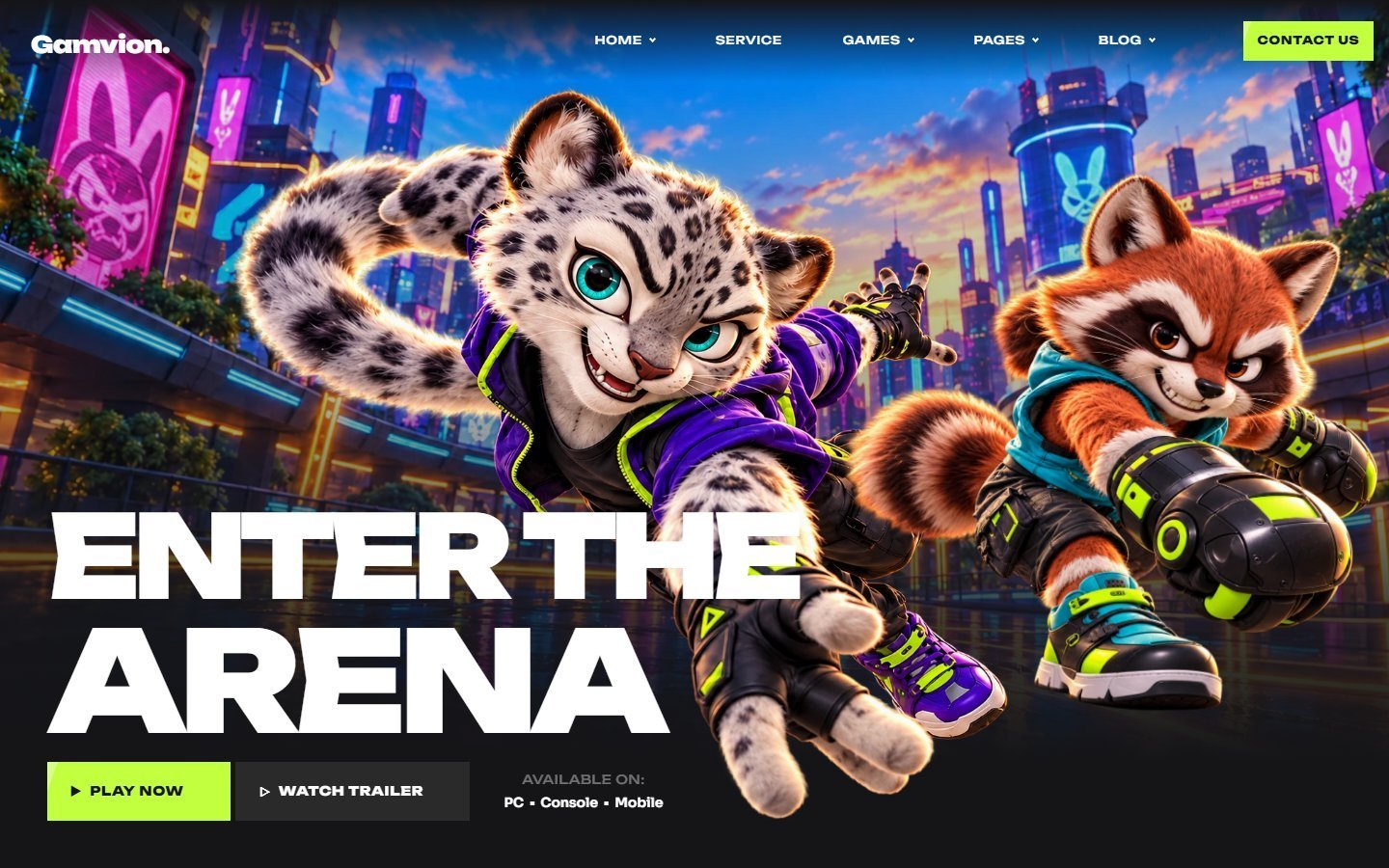
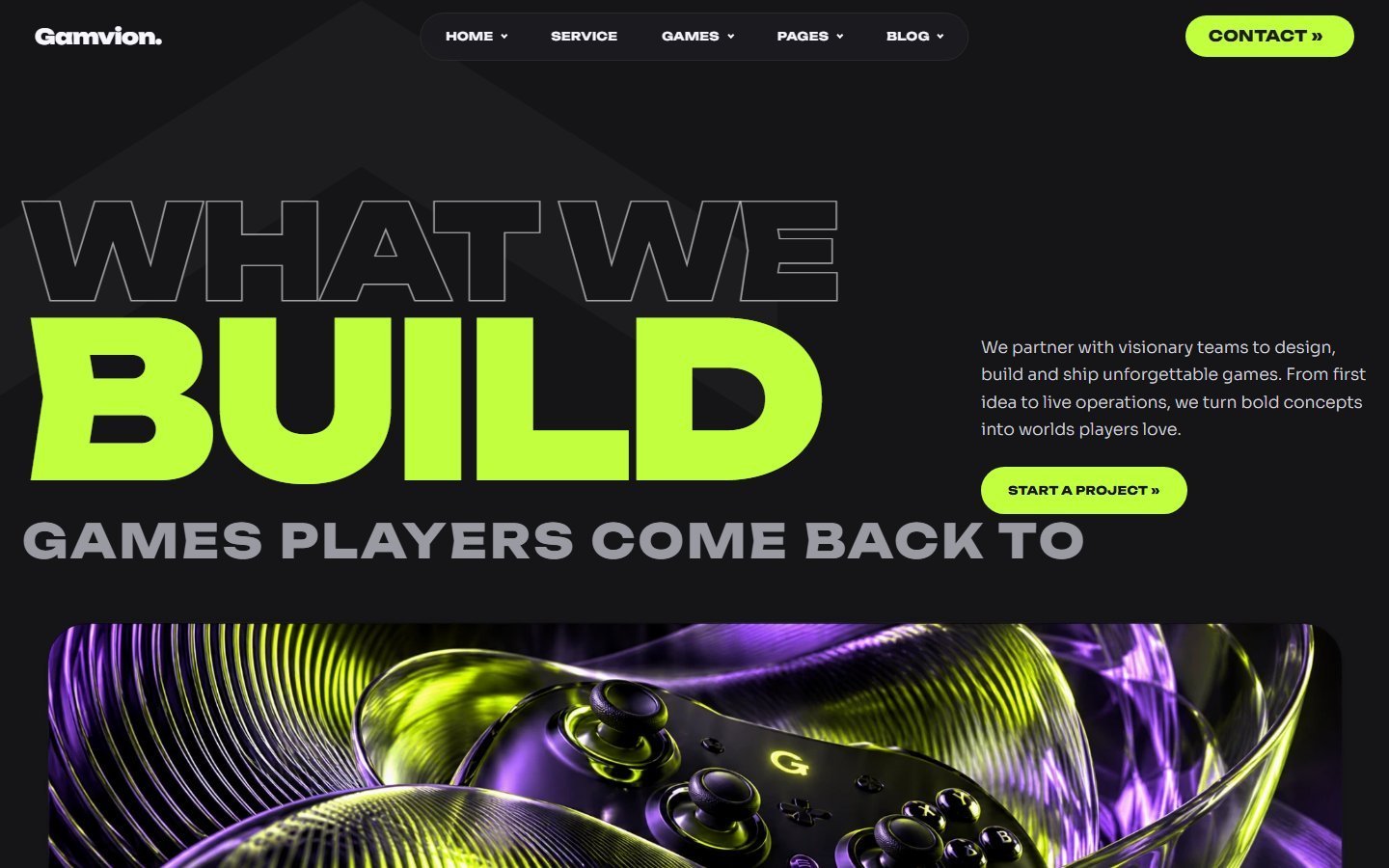
| Neon | / (home) | Main home page: hero, games, studio, services, projects, footer |
| Playground | /playground/ | Alternative home with news cards and a newsletter box |
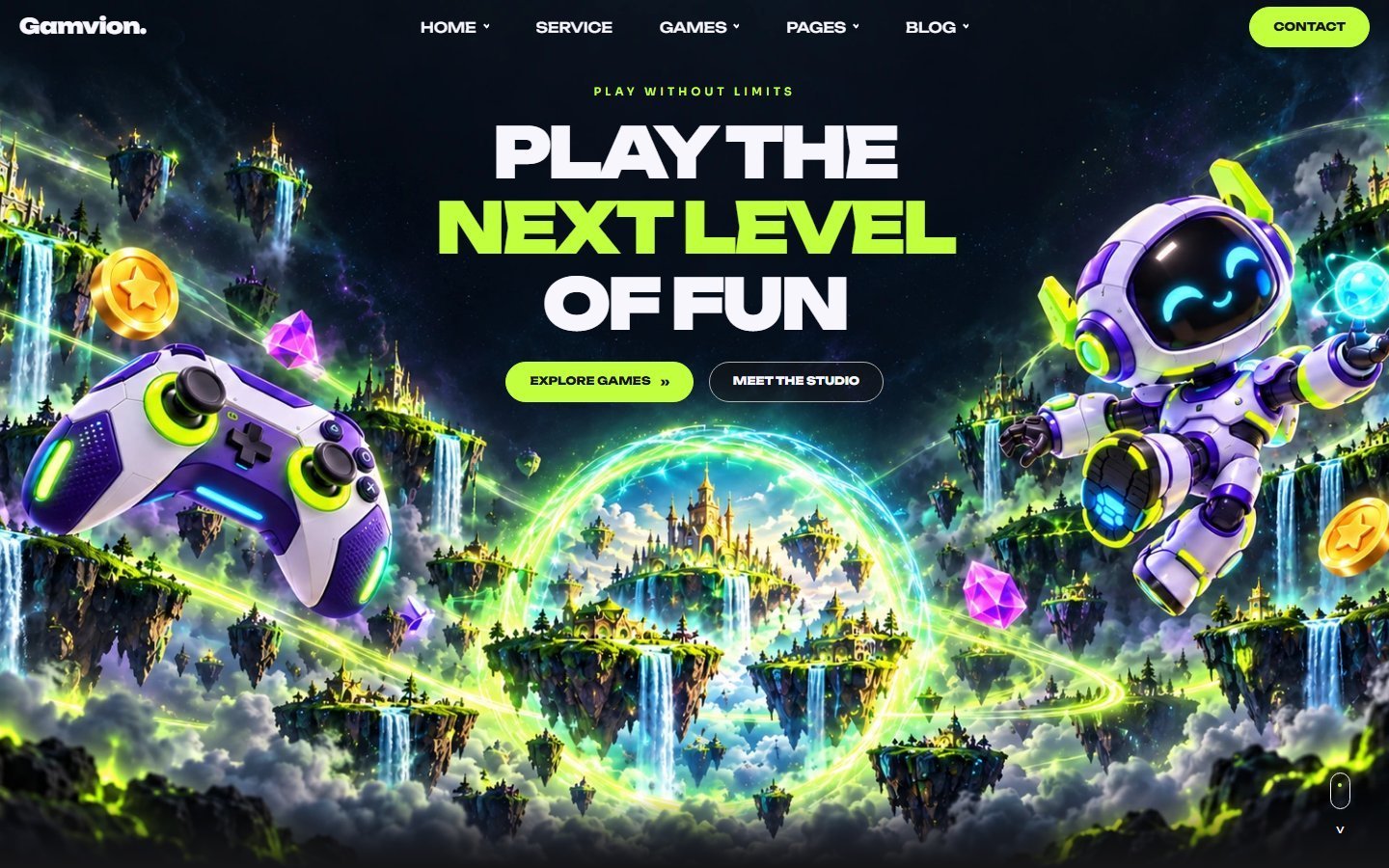
| Islands | /islands/ | Alternative home with large headings |
| Arena | /arena/ | Alternative home with a HUD-style header |
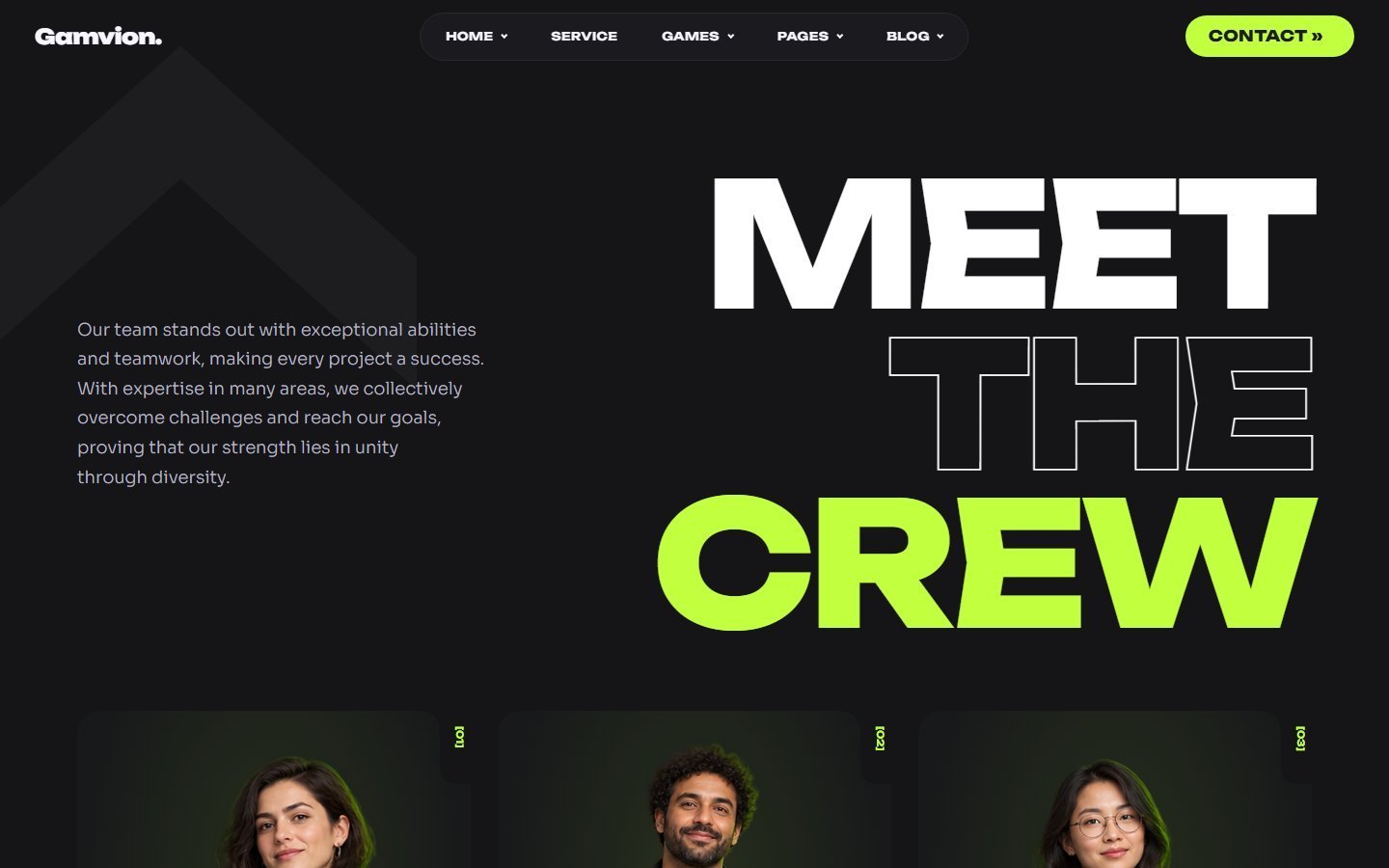
| About Us | /about-us/ | Story, numbers, crew cards |
| Our Game | /our-game/ | All games grid |
| Game Details | /game-details/ | One game's page (data comes from the Games post type) |
| Service | /service/ | Services and process |
| Team | /team/ | All team members |
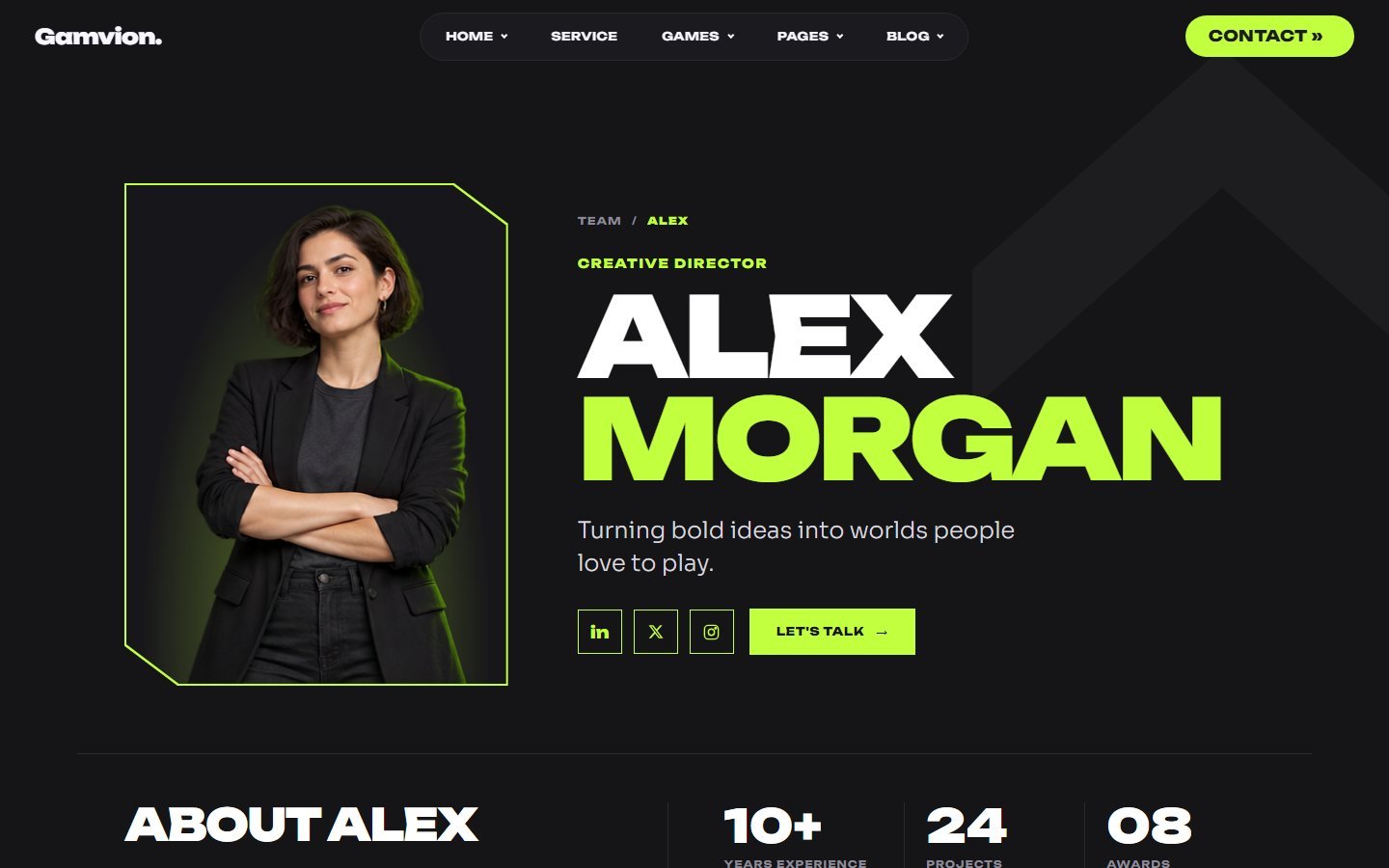
| Team Details | /team-details/ | One person's page (from the Team post type) |
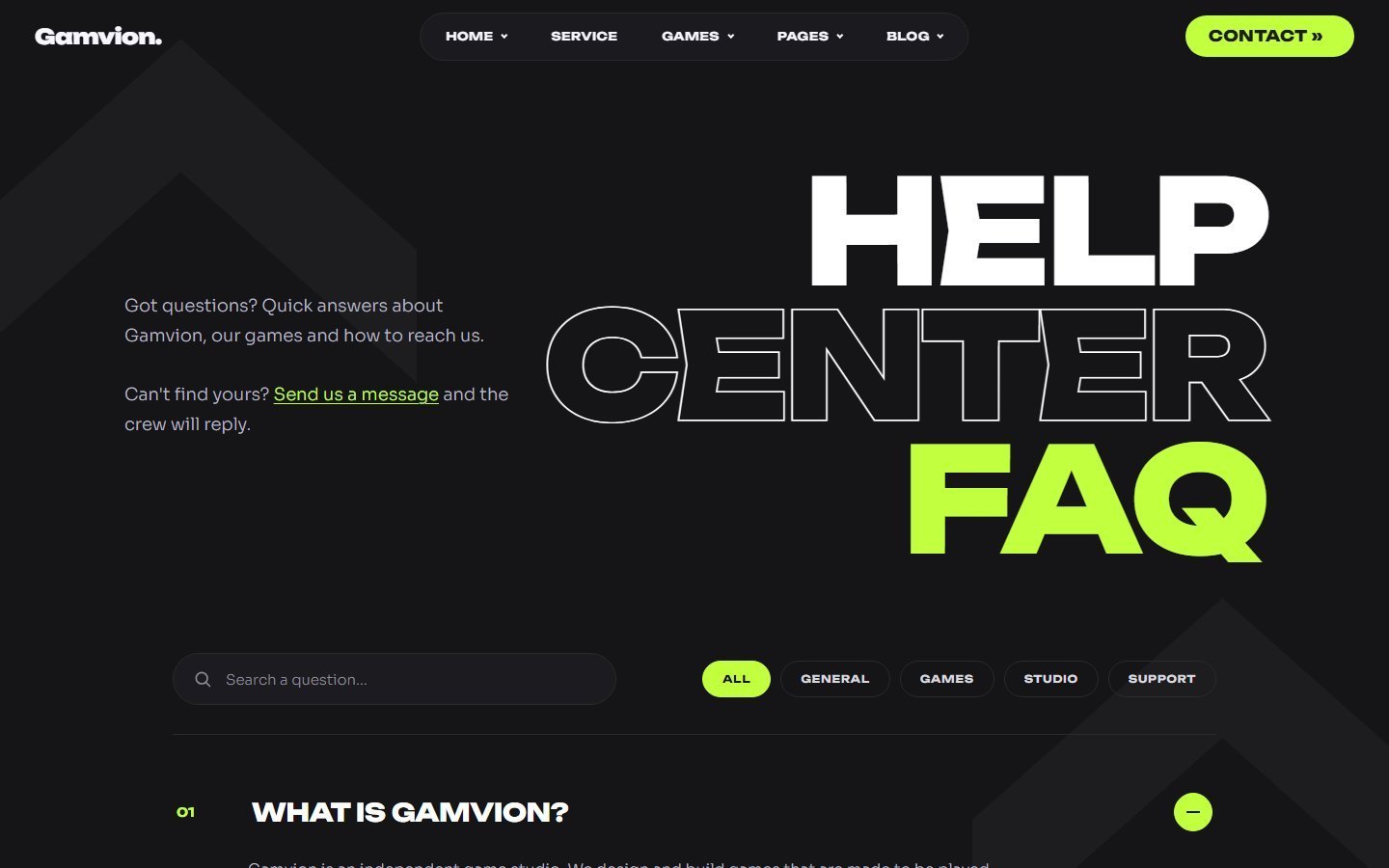
| FAQ | /faq/ | Questions and answers |
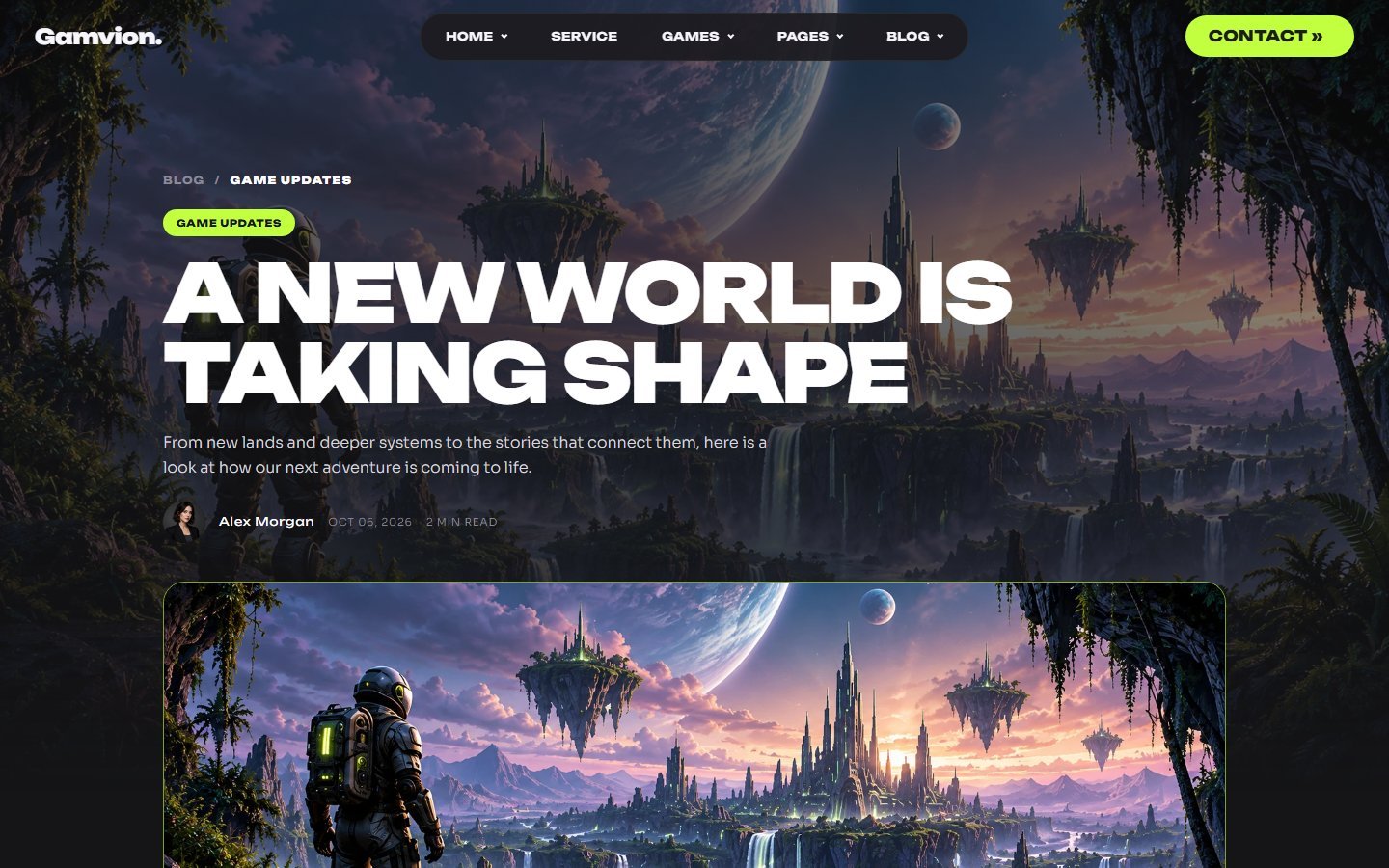
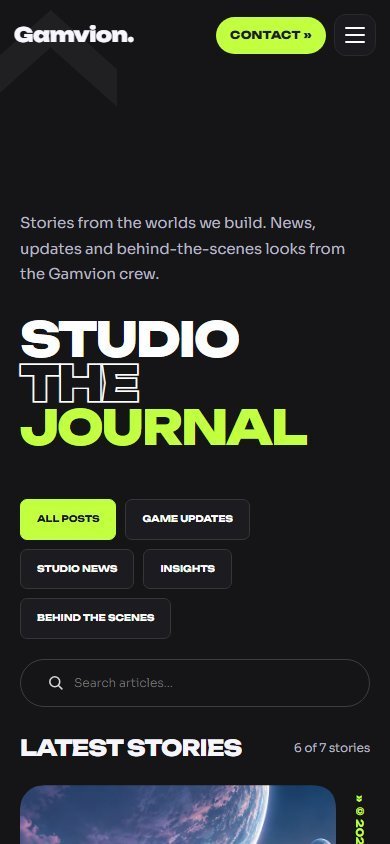
| Blog | /blog/ | Featured story, filters, search and story cards |
| Blog Details | /blog-details/ | One article (from Posts) |
| Contact | /contact/ | Contact form and studio info |
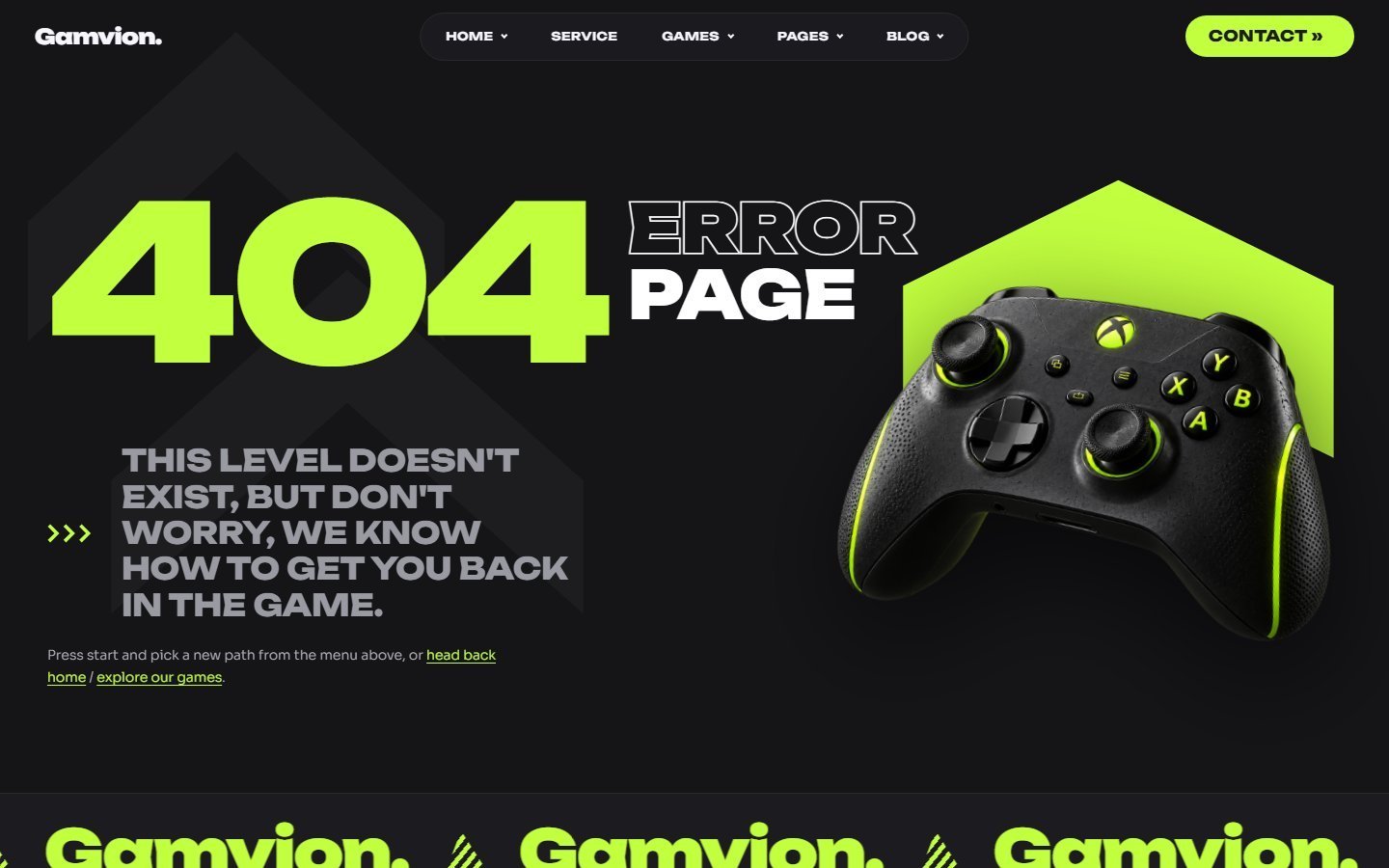
| 404 | /404-page/ | Design for "page not found" |
| Privacy / Cookie Policy | /privacy-policy/ · /cookie-policy/ | Legal text pages. Replace with your own policy. |
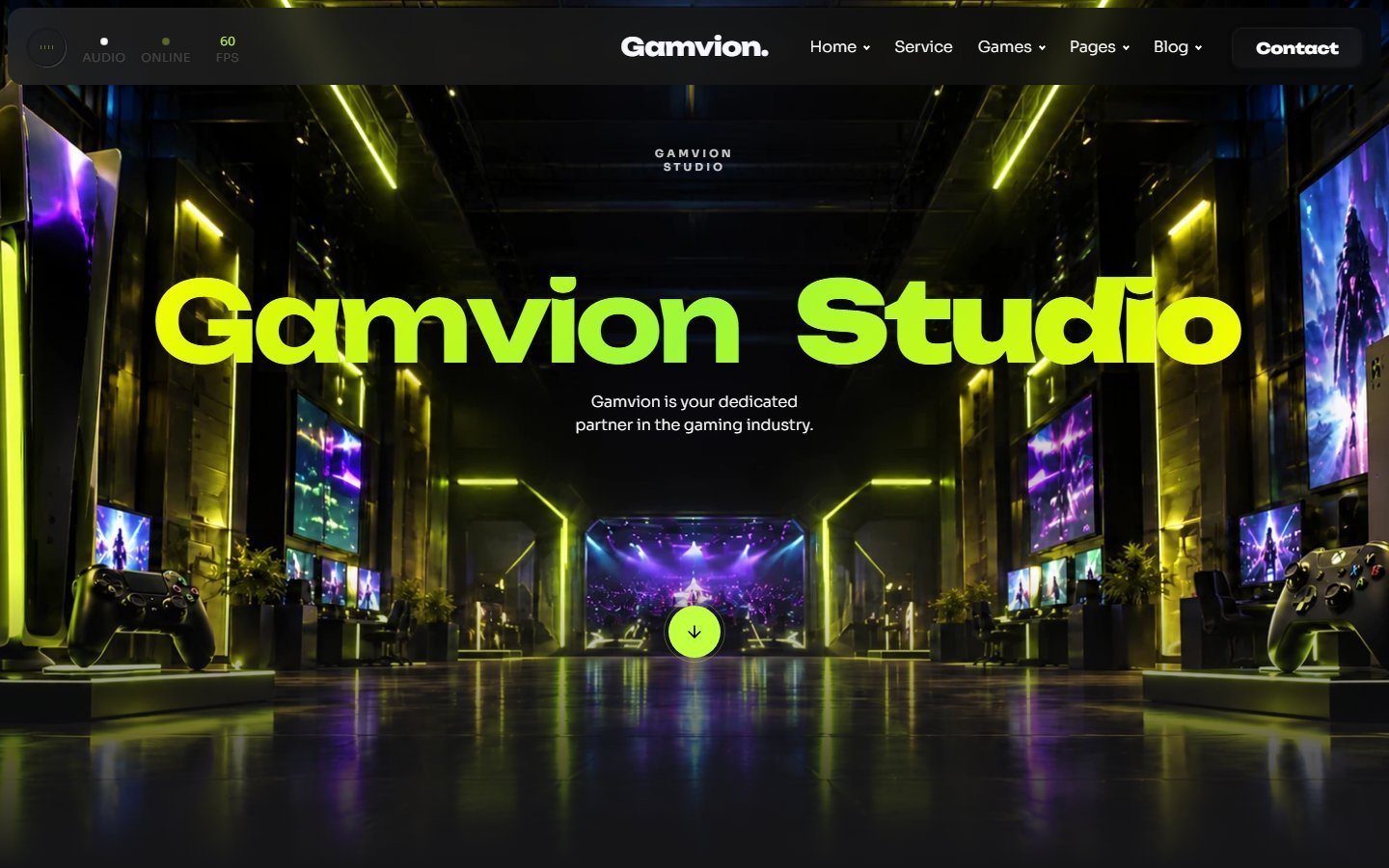
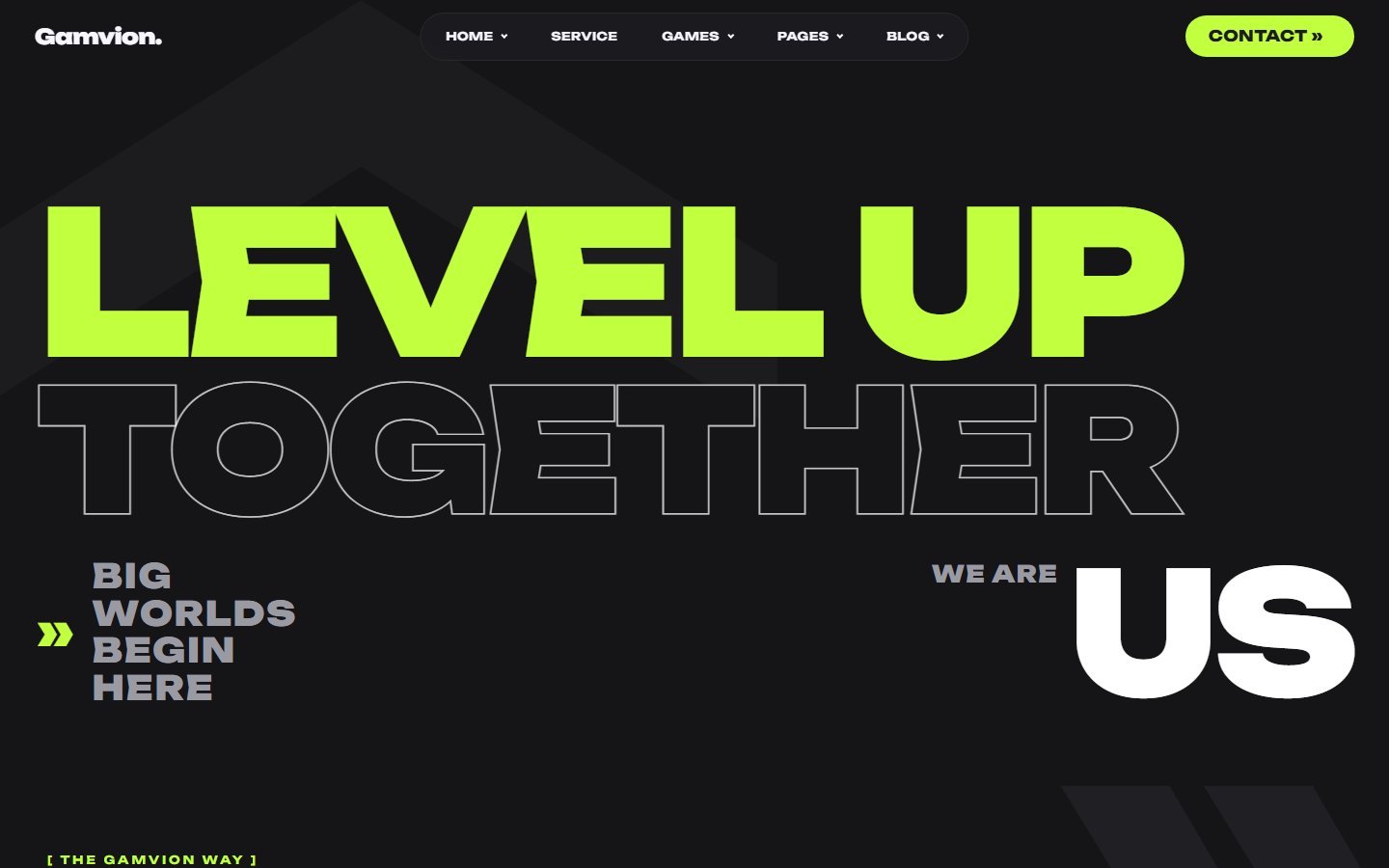
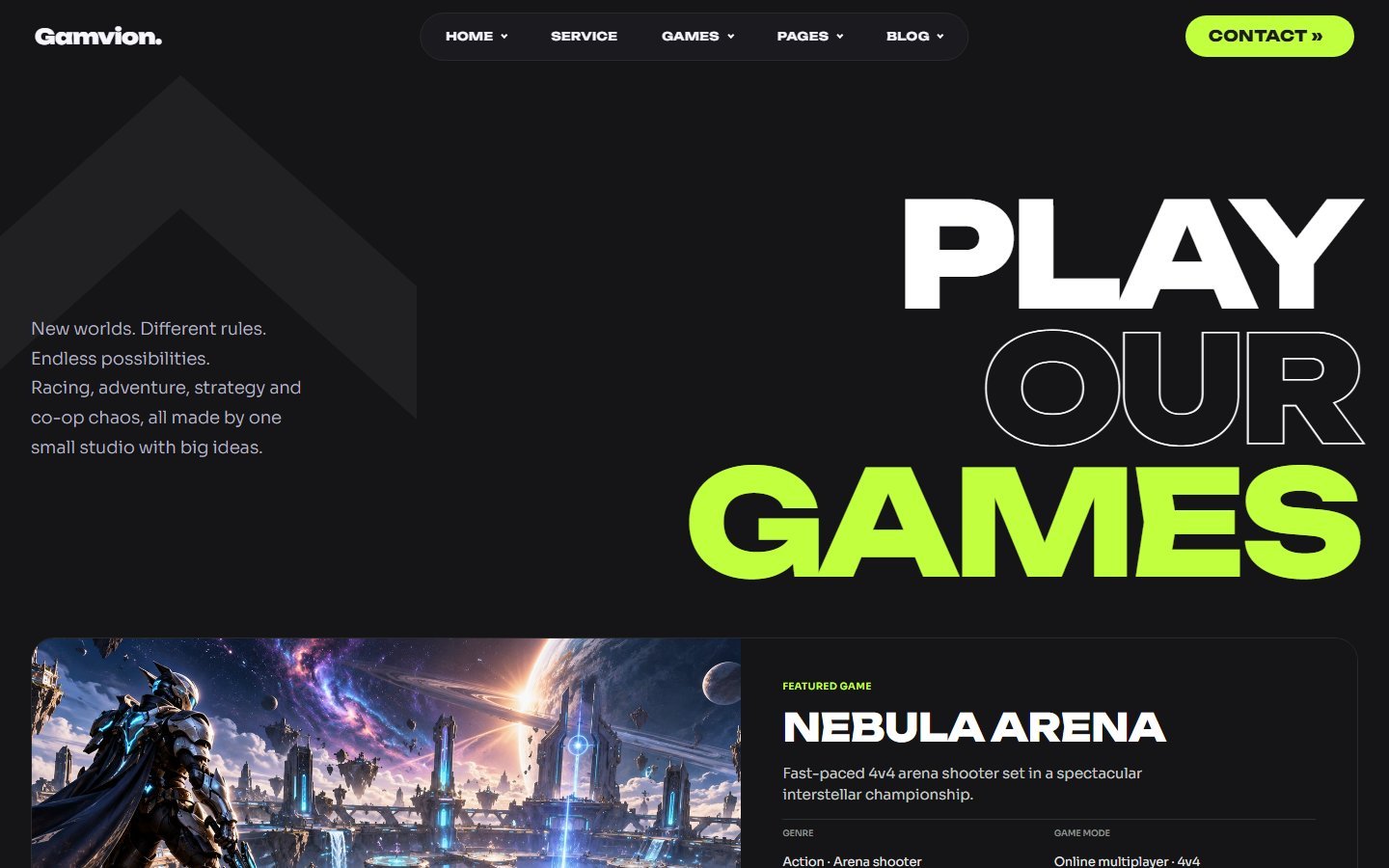
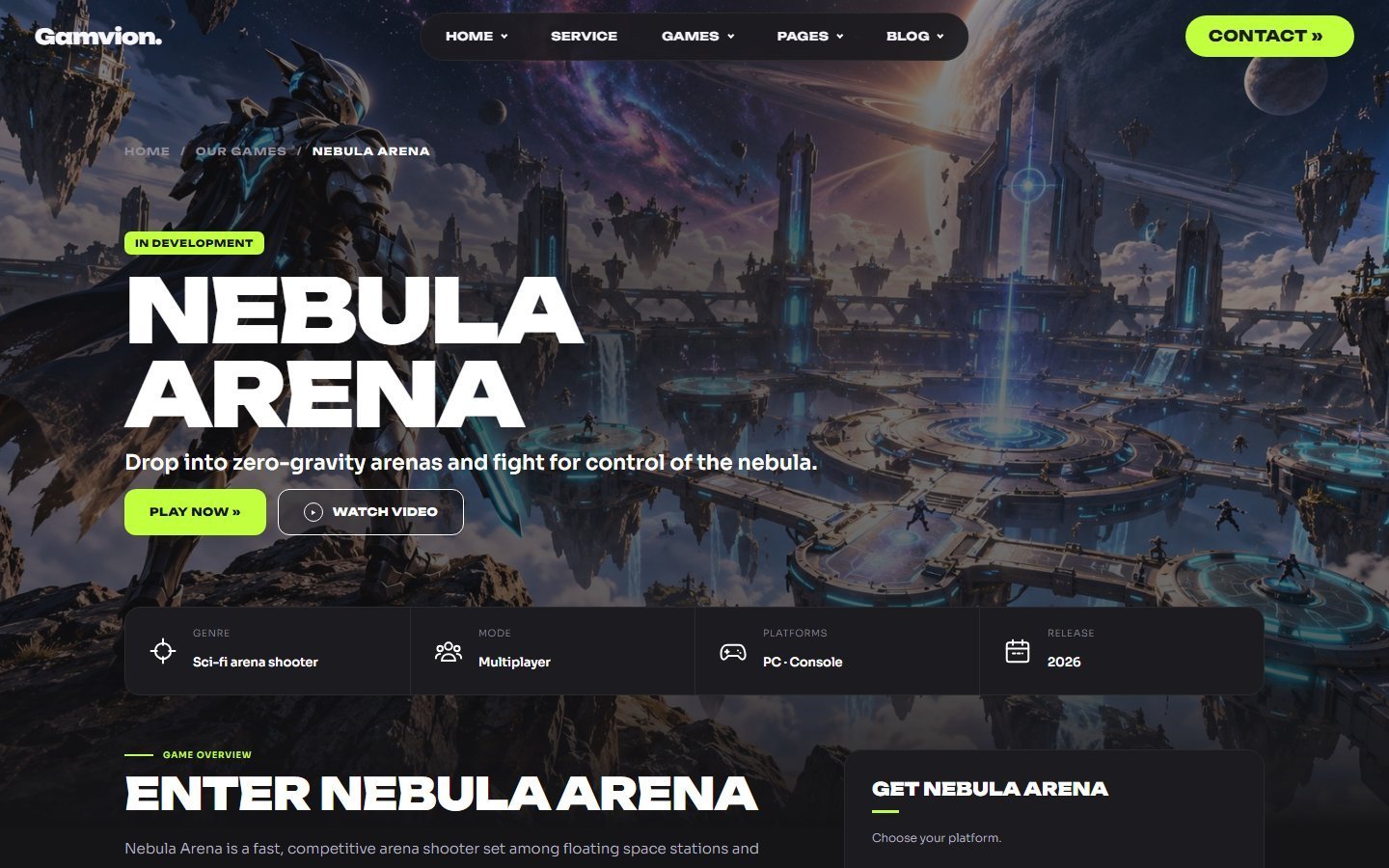
Add a new page
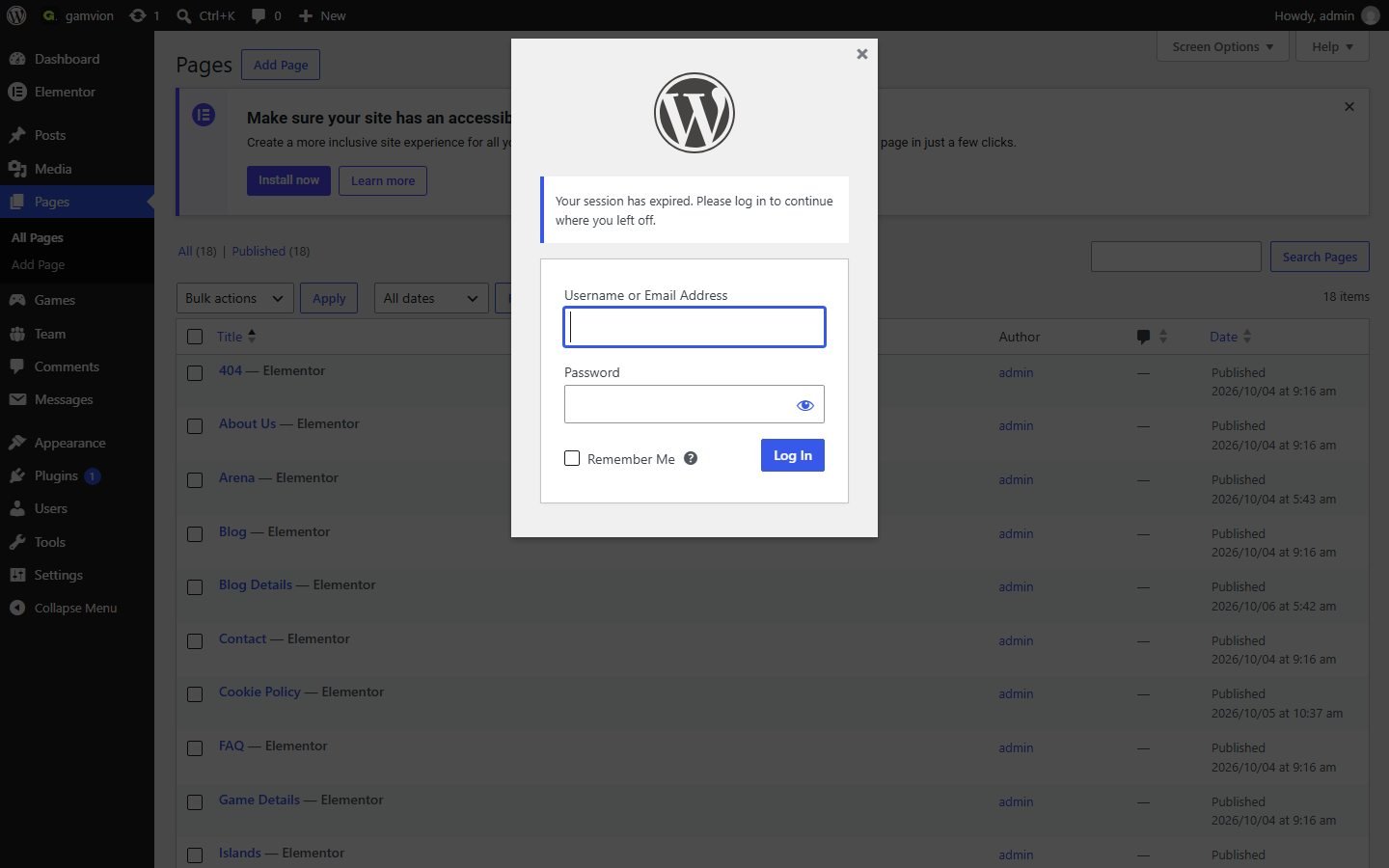
Go to Pages › Add New, add a title, then press Edit with Elementor. The fastest way to match the theme is to open an existing page, copy a section (right-click › Copy) and paste it into your new page. Set the page template to Elementor Canvas (Elementor › Settings icon › Page Layout) so the header and footer you pasted are the only ones shown.
10Editing with Elementor
- Open a pageGo to Pages, hover a page and press Edit with Elementor. Or visit the page on your site while logged in and use Edit with Elementor in the top admin bar.
- Click what you want to changeClick a heading, paragraph, button or image on the canvas. Its settings open on the left: Content for text and links, Style for look.
- PublishPress the green Update button at the bottom left.
Common tasks
| I want to… | Do this |
|---|---|
| Change a heading or text | Click it, type in the panel's Content tab or directly on the canvas. |
| Change a button link | Click the button › Content › Link field. |
| Replace an image | Click the image › Content › Choose Image › upload or pick from Media Library. |
| Move or delete a section | Hover the section handle (top edge), drag to move, or right-click › Delete. |
| Duplicate a card or row | Right-click it › Duplicate. |
| Hide something on mobile | Switch the device icon at the bottom left, select the element › Advanced › Responsive › Hide On Mobile. |
Game cards, team cards, the blog list, the contact form, newsletter box and the Game Details / Team Details / Blog Details layouts are generated by the theme from your content. Change those from Games, Team and Posts, not from Elementor.
Intro loaders, scroll reveals and hover effects run on the live page, not always inside the Elementor editor. Use Preview or open the page in a new tab to see them.
11Header and menu
The header (logo, menu, Contact button) is part of each page's Elementor layout. This gives each home design its own look, but it means a menu change must be repeated on every page, or copied across.
Change a menu item
- Edit a page with Elementor and click the menu link text (for example About Us).
- Change the text and link.
- For dropdowns (Home, Games, Pages, Blog) open the Structure panel (Ctrl+Shift+L) and edit the items inside the dropdown container.
Copy the header to every page
- On the page whose header is correct: right-click the header container › Copy.
- On another page: right-click the old header › Paste, then delete the old one.
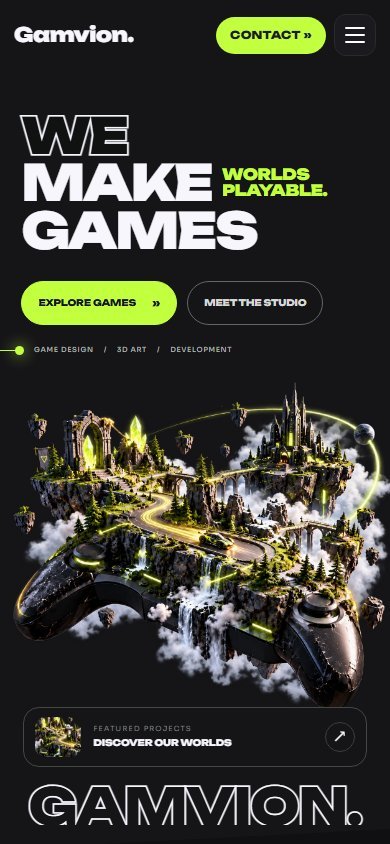
Below 1100px wide the header switches to a hamburger button with a full-screen menu. It uses the same links, so there is nothing extra to set up.
The Arena page builds its menu in code. Its list is in inc/gamvion-home-eight-menu.php, in the array near the top (label, link and sub-links).
13Colours and fonts
The palette
Fonts
Unbounded is used for headings and buttons, Sora for body text. Both are free Google Fonts.
Change a colour on one element
In Elementor click the element › Style tab › change the colour. This is the safest method.
Change the accent colour everywhere
The neon lime #C2FF3F is written directly in many style rules inside wp-content/themes/gamvion/inc/ and in the Elementor page data. To change it site-wide:
- Make a full backup of your site and database.
- Use a plugin such as Better Search Replace to replace
#C2FF3F(and#c2ff3f,rgba(194,255,63) with your colour in the database. - Use your code editor's Find in Files on the
incfolder to replace the same values in the theme files. - Clear Elementor's cache: Elementor › Tools › Regenerate CSS & Data.
Search-and-replace changes many files at once. Test on a staging site, then repeat on your live site.
Change the fonts
Fonts are named in the style rules as 'Unbounded' and 'Sora'. Replace the names in inc/ the same way as above, and make sure your new font is loaded (Elementor › Site Settings › Typography, or a Google Fonts link).
14Games
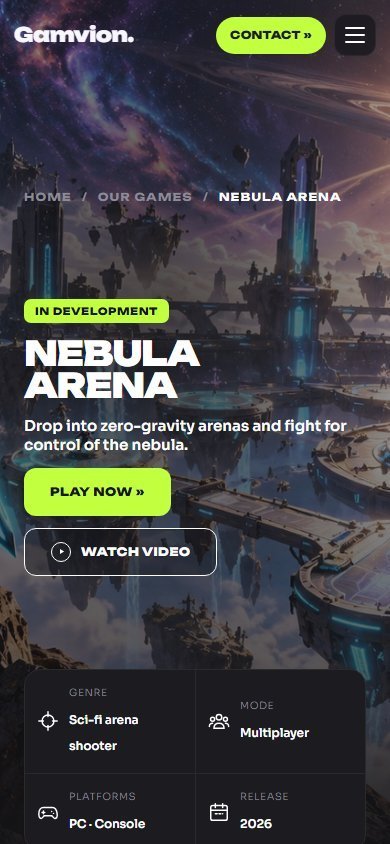
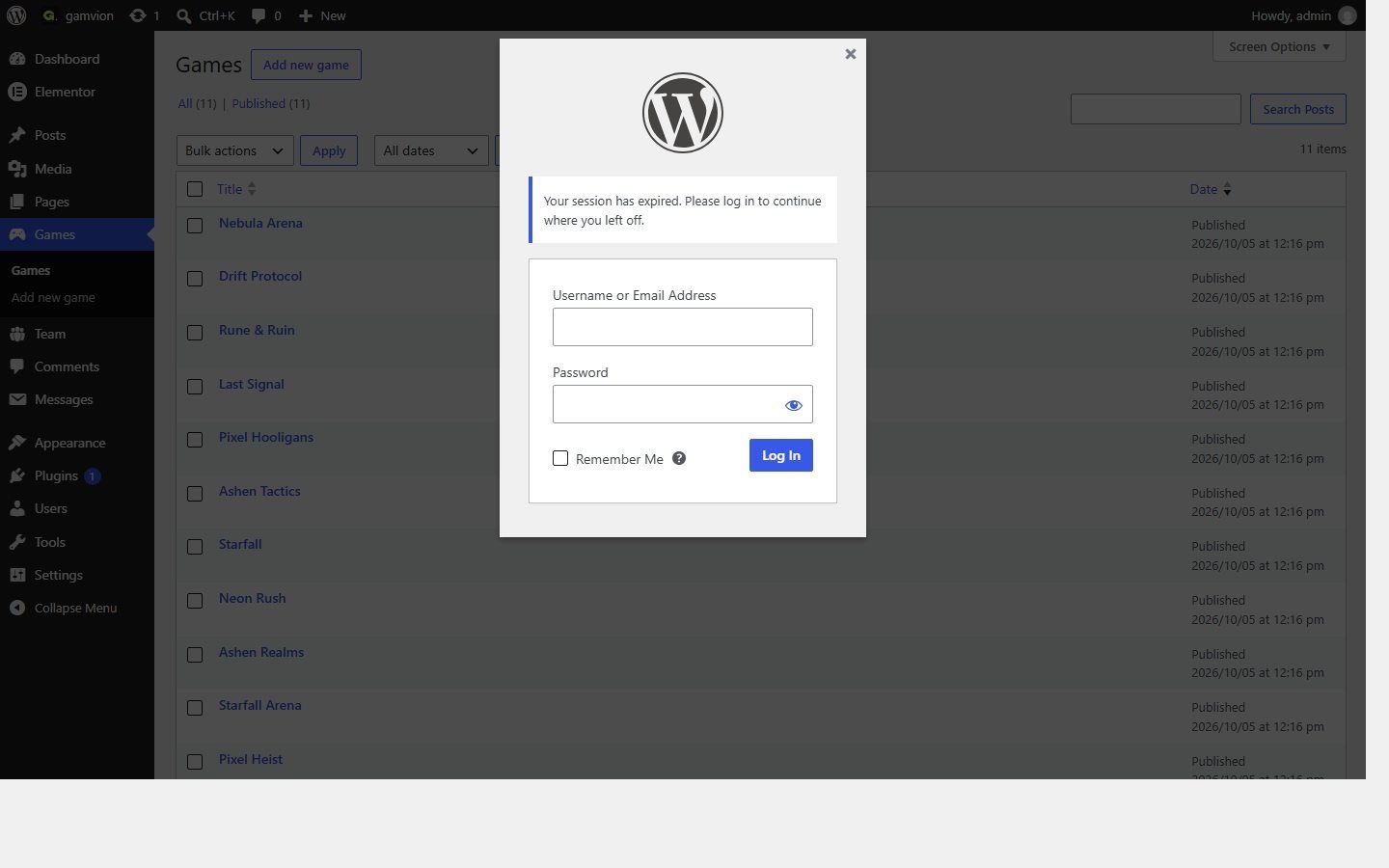
Games are a custom post type, so each game is its own entry. The Our Game grid, the Game Details page and its "More games" strip read from them. Add a game once and it appears everywhere.
Add a game
- Games › Add NewType the game title. Write the long description in the main editor. The Excerpt is the one-line summary shown on cards.
- Set the featured imageThe Featured image (right sidebar) is the cover art. If you leave it empty, the theme uses the URL in the "Image URL" field below.
- Fill the "Game details" boxSee the table below.
- Optional extrasTrailer video, screenshots, system requirements and FAQ.
- PublishThe game page address is
/game-details/your-game-slug/.
"Game details" box
| Field | Example | Where it shows |
|---|---|---|
| Genre | Sci-fi arena shooter | Stats strip, cards |
| Platforms | PC, Console | Stats strip, "Get the game" panel |
| Players | Solo & Multiplayer | Stats strip ("Mode") |
| Status | Available now / Coming soon | Badge on cards and hero |
| Release | 2026 | Stats strip |
| Image URL | https://…/cover.jpg | Cover when no featured image is set |
| Features | Zero-gravity combat | Fight in every direction. | Feature cards. One per line: Title | Short text |
"Game details page extras" box
| Field | Format (one item per line) |
|---|---|
| Screenshots | Image URLs. The first is the large image, the next two are the small ones. |
| System requirements | Label | Minimum | Recommended e.g. Memory | 8 GB | 16 GB |
| FAQ | Question | Answer |
Leave a box empty to show tasteful sample content instead of a blank section.
"Game trailer" box
Paste the URL of an MP4 or WebM file (upload it in Media, then copy the file URL). It plays in the game page gallery with normal video controls.
Games are listed newest first. Edit the Publish date to move a game up or down.
Opening /game-details/ without a game name shows your first game. Link each card and button to /game-details/<slug>/.
15Team members
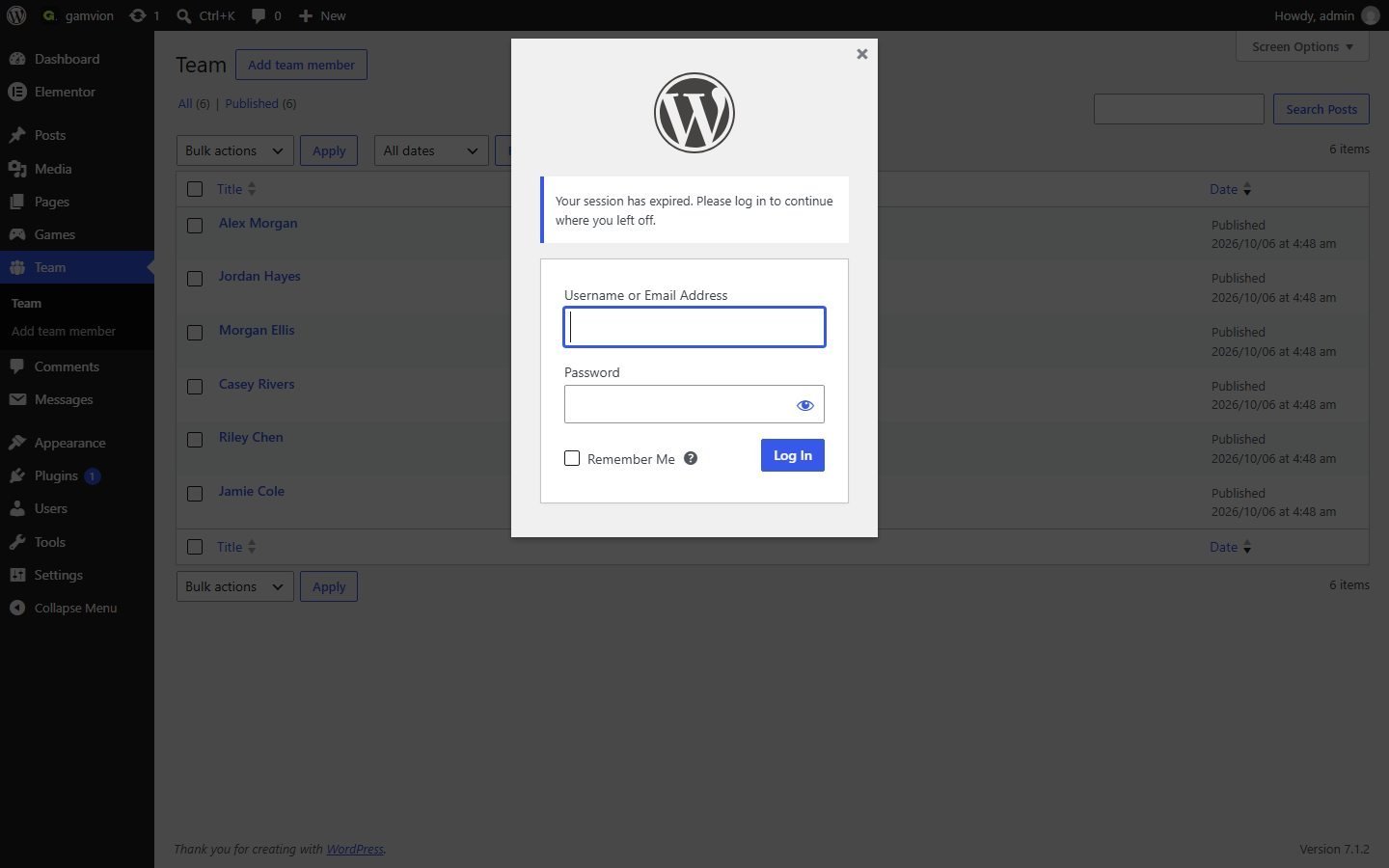
People are a custom post type too. They feed the Team page, the crew cards on About Us, and each person's Team Details page.
Add a team member
- Team › Add NewThe title is the person's name. The Excerpt is the short line under the name. The editor text is the "About" paragraph.
- Upload a portraitSet the Featured image (vertical photo, about 800 × 920 px works best).
- Fill "Team member details"
| Field | Example |
|---|---|
| Role | Creative Director |
| Years of experience | 10+ |
| Projects | 24 |
| Awards | 08 |
| Selected work | nebula-arena, rune-and-ruin (game slugs, comma separated) |
| LinkedIn / X / Instagram | Full URLs. Empty fields hide the icon. |
| What they bring | Vision | Sets the creative direction. (one per line) |
| Portrait crop | Advanced: only used by the demo portrait sheet. Ignored when you set a featured image. |
The first five team members (by title order) appear in the About crew row. The Team page shows everyone.
16Blog
The Blog page and Blog Details use normal WordPress Posts, so you can write articles with the standard editor.
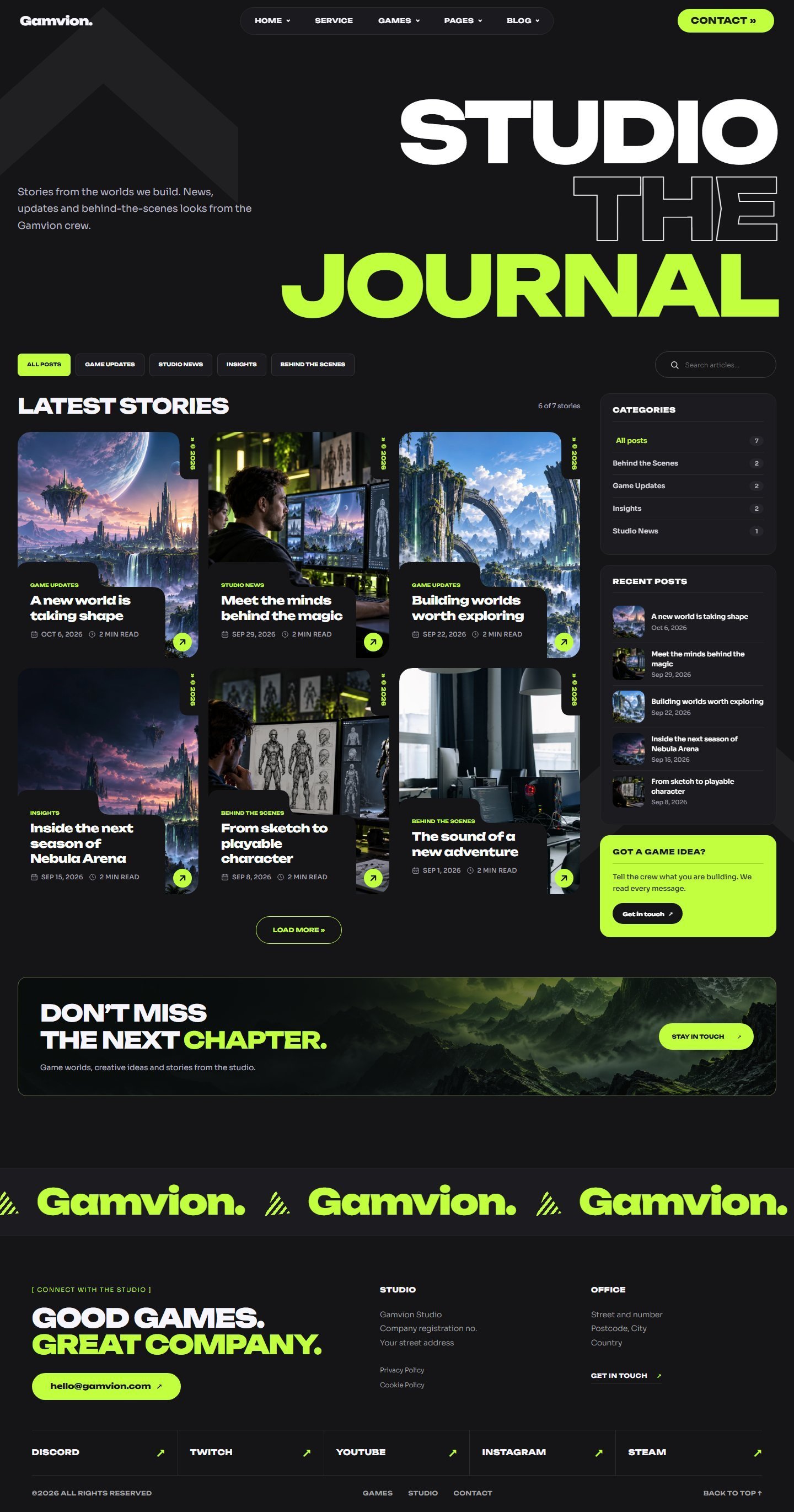
- Posts › Add NewWrite the title and the article body. The Excerpt becomes the card summary.
- Choose a categoryThe first category is the label on the card (for example Game Updates). Categories automatically become the filter buttons on the Blog page.
- Add a Featured imageThis is the card and article hero image. Landscape images about 1600 × 900 px look best.
- PublishThe newest post becomes the large featured story. The next posts (up to 12) are shown as cards. The reading time is calculated from the word count.
Each story opens at /blog-details/post-slug/ with author block, share buttons and "More stories".
They filter the stories instantly in the browser. Nothing to configure.
17Contact form
The form on the Contact page sends AJAX messages without reloading the page.
- Each message is saved in Messages (admin menu) and emailed to the Administration Email in Settings › General.
- Built-in spam protection: a hidden honeypot field and a limit of 5 messages per hour per visitor.
- The page text (title, studio address, email shown) is normal Elementor text: edit it on the Contact page.
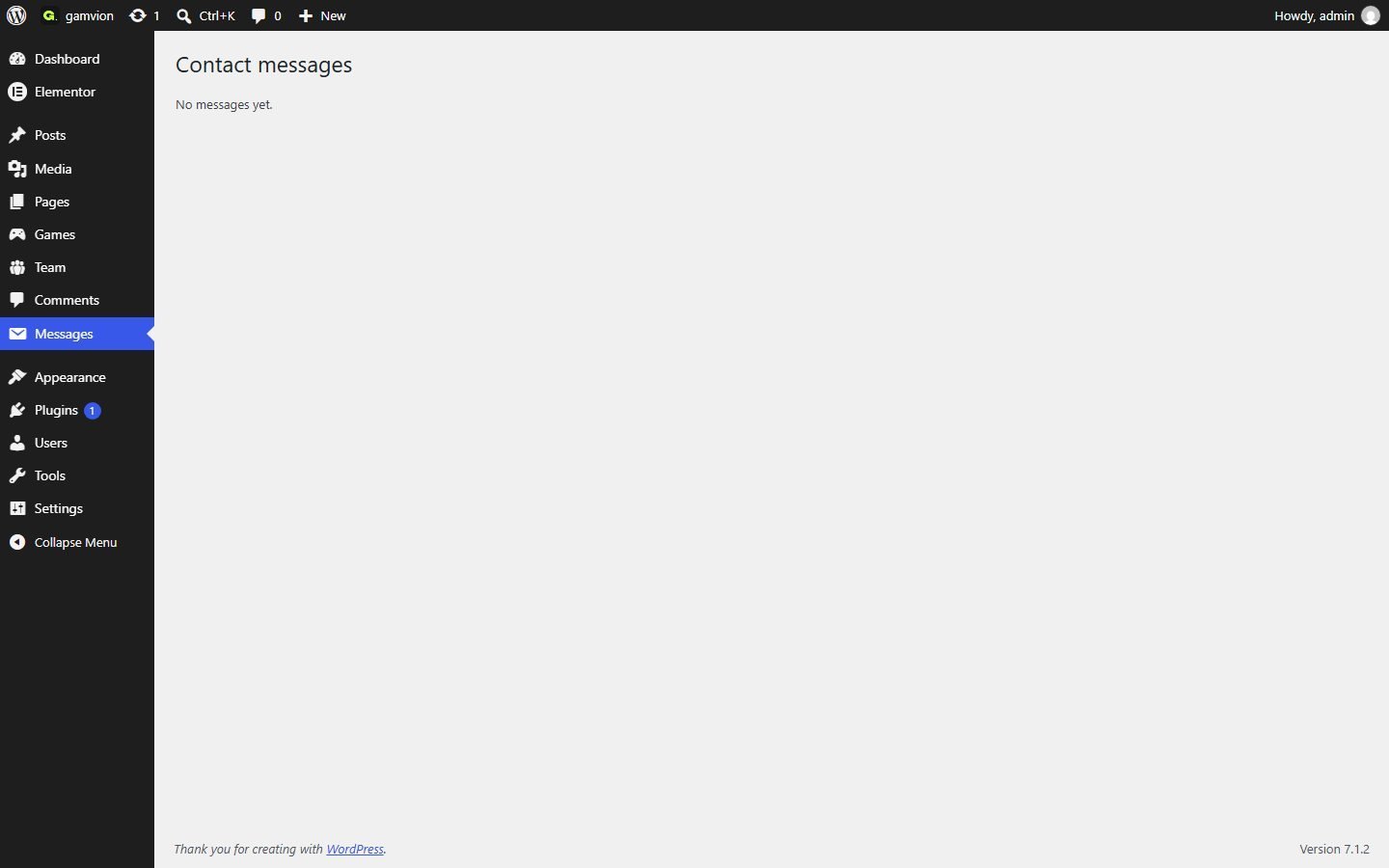
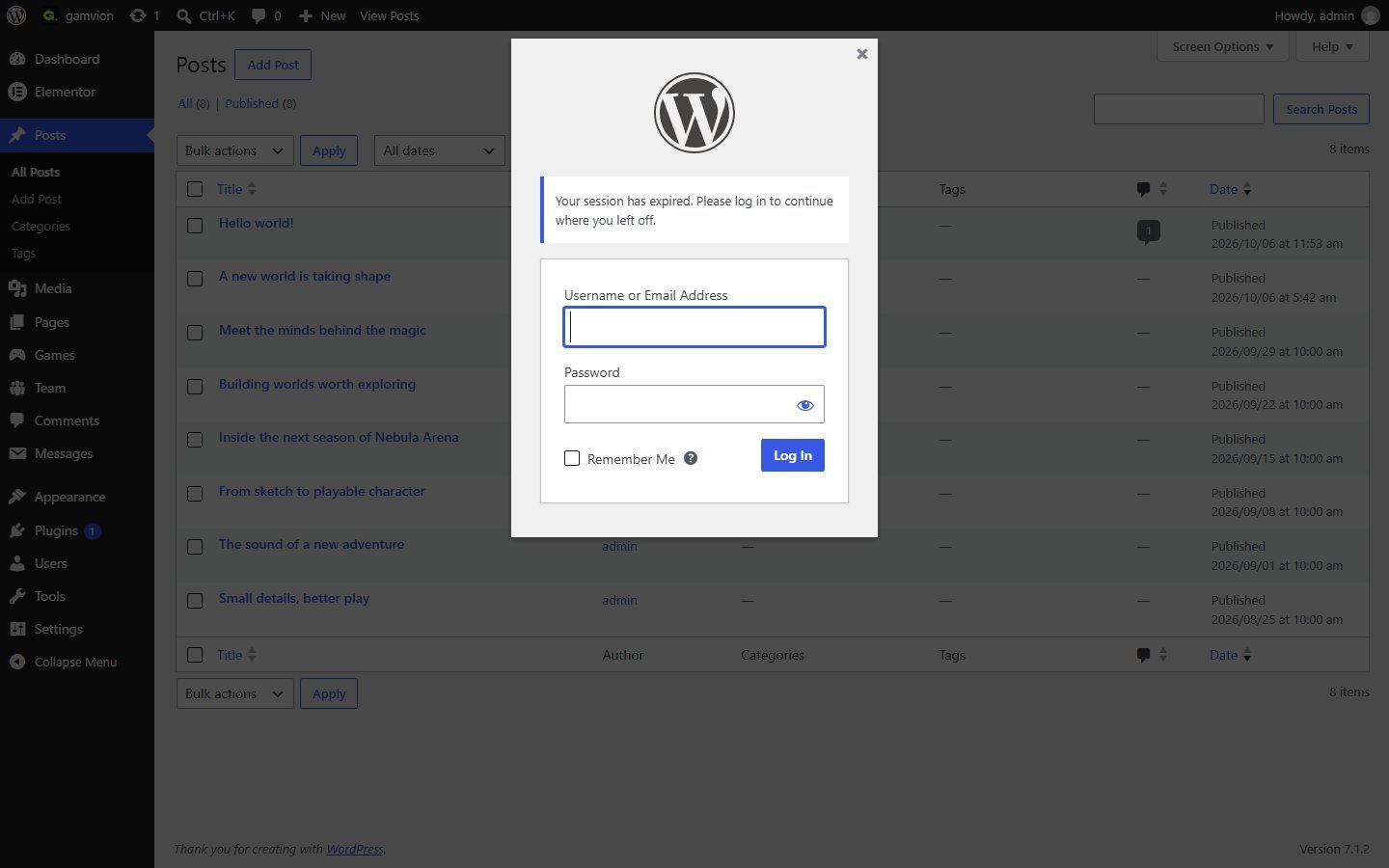
Many hosts block WordPress mail. Install an SMTP plugin (WP Mail SMTP, FluentSMTP) and connect your mail account. The message is still saved in Messages even if the email fails.
19Responsive design
Layouts adapt from 320px phones up to wide desktop screens. Breakpoints used most often:
| Width | What changes |
|---|---|
| Above 1100px | Full desktop header and multi-column layouts |
| 1100px and below | Hamburger menu replaces the header links |
| 900px and below | Grids drop to two columns, large headings shrink |
| 600px and below | Single-column cards, tighter spacing, smaller buttons |
| 320px | Smallest supported width |
To check a page, in Elementor click the device icon at the bottom left (Desktop / Tablet / Mobile), or resize your browser.
The big outlined headings are sized with viewport units so they fit, but very long words can still overflow. Prefer short words.
20Translation
The theme uses the text domain gamvion and loads translations from wp-content/themes/gamvion/languages/. Create a translation with the free Loco Translate plugin: Loco Translate › Themes › Gamvion › New language. Text you type inside Elementor is edited directly on each page, or translated with a plugin such as Polylang or TranslatePress.
21Code structure (for developers)
Each feature lives in one file in inc/. The theme loads them all in alphabetical order from functions.php.
| File | Purpose |
|---|---|
gamvion-games.php | Games post type, rewrite for /game-details/, "Game details" box |
gamvion-game-details2.php | Game Details page layout and extras box |
gamvion-game-media.php | Trailer box and game screenshots |
gamvion-our-games.php | Our Game grid |
gamvion-team-members.php | Team post type and Team Details layout |
gamvion-team-rounded.php | Crew card shapes (Team and About) |
gamvion-blog-design.php | Blog list from posts |
gamvion-blog-details.php | Article layout |
gamvion-contact.php | Contact form, Messages inbox |
gamvion-newsletter-signup.php | Newsletter signup |
gamvion-mobile-menu.php | Hamburger menu |
gamvion-responsive.php | Responsive fixes per page |
gamvion-home-*-effects.php | Animations and styling of the four home designs |
gamvion-demo-importer.php | One-click demo importer |
If you edit files in inc/ directly, the changes are lost when you update the theme. Keep a copy of your edits, or create a child theme and add your own CSS with Appearance › Customize › Additional CSS.
Add your own CSS
Go to Appearance › Customize › Additional CSS, or inside Elementor use Site Settings › Custom CSS. Example, round all buttons more:
.elementor a.gv-btn { border-radius: 40px; }22Performance tips
- Upload images no larger than 2000px wide, and compress them (for example with Squoosh or ShortPixel).
- Use short MP4 clips (under 10 MB, no sound) for video backgrounds.
- Install a caching plugin (LiteSpeed Cache, WP Rocket, W3 Total Cache) and enable image lazy loading.
- Use PHP 8.1+ and keep Elementor up to date.
- Delete the demo content you do not need (unused pages, games, media).
23Troubleshooting
The game, team or blog "details" pages show a 404
Go to Settings › Permalinks and press Save Changes (no changes needed). This refreshes the address rules.
The importer button is disabled
Elementor is not active, or demo/data.json is missing. Activate Elementor, and re-upload the theme zip if the file is missing.
The importer says IDs are already used
Your site already has content. Use a fresh WordPress install (or a clean staging site), then import again.
The import stops halfway
Your host timed out. Raise PHP max_execution_time to 300 and memory_limit to 512M, then press Import again. Already imported items are skipped.
Pages look unstyled or differ from the demo
Go to Elementor › Tools › Regenerate CSS & Data, then clear your cache plugin and your browser cache. Also make sure no other plugin or theme is loading a second Elementor "Hello" kit.
Video backgrounds are empty
Add the demo videos (see Demo videos) or replace them with your own in Elementor.
The intro loader (counting to 100) stays on screen
A JavaScript error from another plugin can stop it. Disable optimisation plugins that "defer" or "combine" JavaScript for this site, or exclude the page from the optimisation.
Menu changes do not show on other pages
The header belongs to each page. Copy the corrected header across pages (see Header and menu).
I see "headers already sent" or a white screen
Turn on debugging by adding define('WP_DEBUG', true); and define('WP_DEBUG_LOG', true); to wp-config.php. Check wp-content/debug.log and contact support with the message.
24Frequently asked questions
Do I need Elementor Pro?
No. The theme works with the free Elementor plugin.
Can I use the theme without the demo?
Yes, but the pages are the main design. Importing the demo gives you every page to edit. You can then delete what you do not need.
Can I run it on an existing site?
The importer needs a clean site. On an existing site, import the demo on a staging copy, then move pages you want using Elementor's copy and paste.
Will it work with WooCommerce?
Gamvion does not include shop pages. WooCommerce can be installed, but you will need to style the shop pages yourself.
Does it support right-to-left languages?
The layout is designed left-to-right. RTL languages may need extra CSS adjustments.
Can I use my own fonts?
Yes. See Colours and fonts.
Where do I change the contact email shown on the Contact page?
It is normal text on the Contact page. Edit it in Elementor. The address that receives messages is set in Settings › General › Administration Email.
25Changelog
17 page designs, Games / Team post types, dynamic Blog, contact form with Messages inbox, newsletter signup, mobile menu, one-click demo importer, responsive layouts.
26Credits and licences
- Elementor — GPL, wordpress.org/plugins/elementor
- Unbounded and Sora fonts — SIL Open Font License, Google Fonts
- WordPress — GPL v2 or later
The demo images and videos are included to show the design. Before you publish a real site, replace them with images you own or are licensed to use. The publisher must list the source and licence of every demo image here before marketplace submission.
27Support
Before contacting support, please check the Troubleshooting and FAQ sections. When you write to us, include:
- Your WordPress, PHP and Elementor versions (Tools › Site Health › Info).
- The page address and a screenshot of the problem.
- Any message from
wp-content/debug.log.
Support covers theme bugs and questions about how the theme works. Custom development and third-party plugins are not included.